

Kubit account security
Account security settings are global and do not change when you switch organizations. Passwords, two-factor authentication, sessions, and security events are available from account settings.
Because one account may reach several organizations and services, use a unique password and enable two-factor authentication. If you sign in only through LDAP or SAML, your organization's identity system controls password changes and sign-in policy.
Change your password
Open Password in account settings. Kubit may first send a verification code to the account's email or phone number. After verification, enter the old password and the new password twice.
Use a long, unique password that meets the displayed requirements. Kubit may reject weak passwords or passwords found in public breaches. Do not reuse the password for another service.
After a successful change, the current session remains active and other sessions are closed. If you do not know the old password, use Kubit account password recovery.
If you suspect exposure, change the password from a trusted device, review active sessions and security events, and keep two-factor authentication enabled.
Two-factor authentication
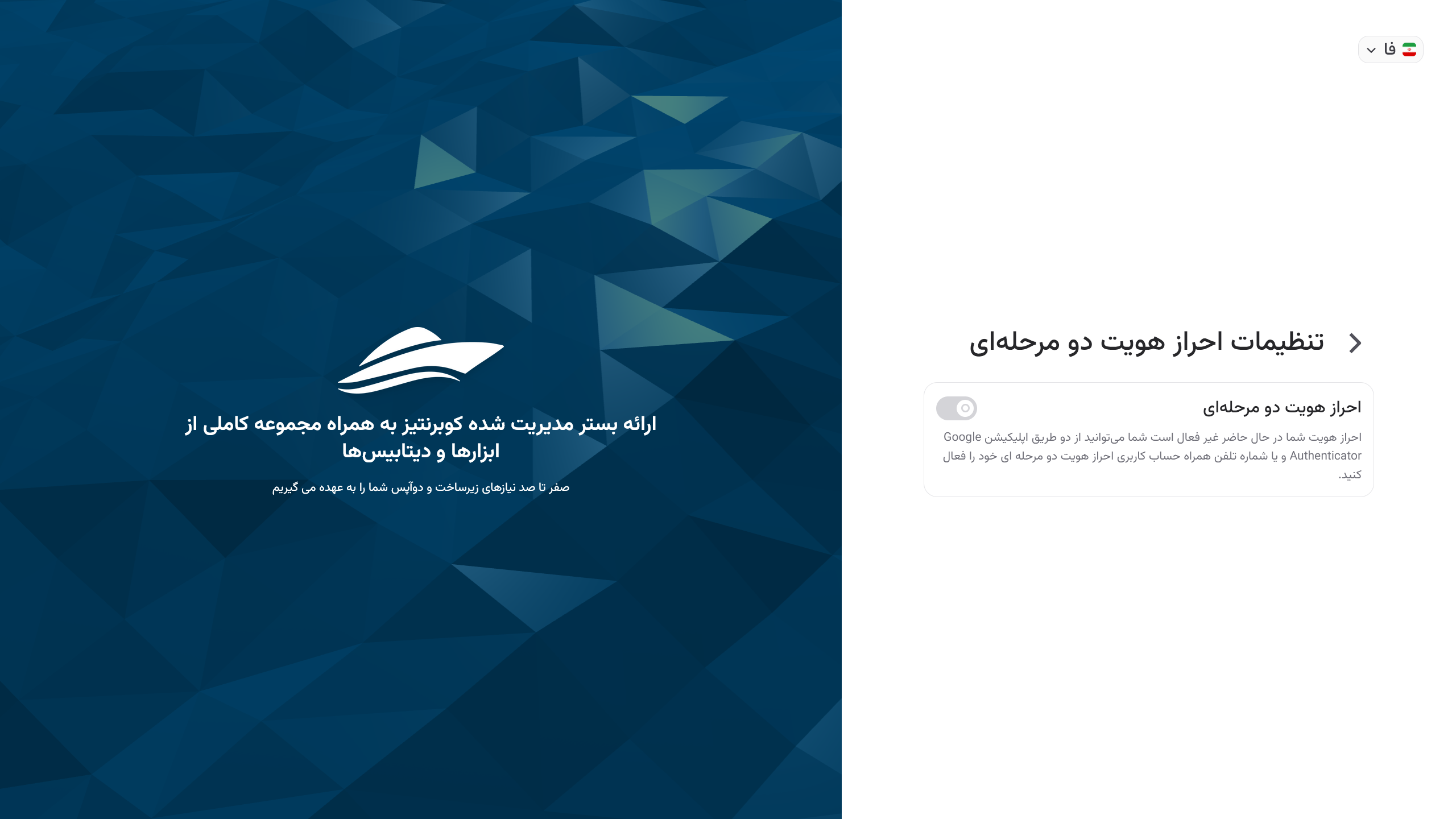
Two-factor authentication requires another code after the initial sign-in. Kubit supports an authenticator app and the verified phone number.
Never share a two-factor code. It does not replace a strong password, but it reduces the risk from a stolen password.
Authenticator app
Choose Authenticator App, scan the QR code with a TOTP-compatible app, and enter the generated code to finish setup. The app works offline, but the device clock must be accurate.
The QR code and manual setup key are secrets. Do not store them in public messages, screenshots, or files.
If codes fail, enable automatic time and time-zone settings and enter a fresh code. Before replacing or erasing the phone, configure the method on the new device.
Receive a code by SMS
Kubit sends the code to the verified phone number by SMS and to the Bale account associated with the same number. After requesting another code, use only the newest one.
This method depends on control of the SIM card, phone number, and Bale account. Protect the Bale account, review its sessions, and change the Kubit two-factor method from a trusted session if you lose the SIM or phone-number control.
Change or disable two-factor authentication
Configure and verify the new method before removing the old one. Disabling two-factor authentication requires the Kubit account password and removes the second protection layer.
An organization may require a one-time password independently. Disabling your personal choice does not remove that organization's requirement.
Active sessions
Each active browser or device has a session. The page shows its browser, operating system, and creation time. Closing a browser window does not always end the session, so sign out on shared devices.
End any session you do not recognize. The current session cannot be ended from its own row; changing the password closes all other sessions.
End the session, change your password, and review security events for other suspicious activity.
Account security events
Account events include successful sign-in, sign-out, verification-code activity, password changes, and session termination. Rows may include the browser, operating system, time, and IP address.
An IP address is not an exact location. Compare it with the time, operation, and browser. If you receive a code you did not request, do not share it; review later events to see whether verification or sign-in succeeded.
If you find an unknown sign-in, close its session, change the password, and verify two-factor authentication. Share only the event time and type with support—never a password or verification code.
Account security and organization policy
Account settings belong to you. Organization policies apply to every member of one organization without changing their Kubit accounts.
An organization can require a one-time password for Kubit, LDAP, or SAML sign-in. Verification remains valid for a limited period, so it is not requested on every page.
What is a network allowlist?
A network allowlist limits organization access to registered public IPv4, IPv6, or network ranges. Correct credentials are still rejected when the connection comes from outside those ranges.
The restriction applies only to that organization. You may still reach your Kubit account or another organization. Connect through the approved company network or VPN, and ask the administrator to check whether the public address has changed.
One-time-password requirements and network allowlists are organization settings, not personal member settings. They are configured as organization-specific services and are not editable in the current public panel. Coordinate changes with the organization administrator or Kubit support.