

Add domains and manage TLS certificates
Kubchi lets you register a domain and make its TLS certificate available to Packs in the project. You can ask Kubchi to issue and renew a certificate with Let's Encrypt, or import a certificate that you already have.
Registering a domain does not publish an application on its own. The chart must define an Ingress and inputs for the hostname and certificate Secret. You then set those values in Pack Configuration.
Prerequisites
- The project must be connected to an active cluster.
- You need access to manage the domain's DNS records.
- Automatic issuance requires
cert-manageron the cluster. If it is missing, the panel links to its installation under cluster add-ons. - HTTPS traffic also requires an Ingress Controller and a working network path to it.
Add a domain
Open Kubchi from the project sidebar, then select Domain Certificates. The table shows each domain, its certificate Secret, status, remaining validity, and access level.
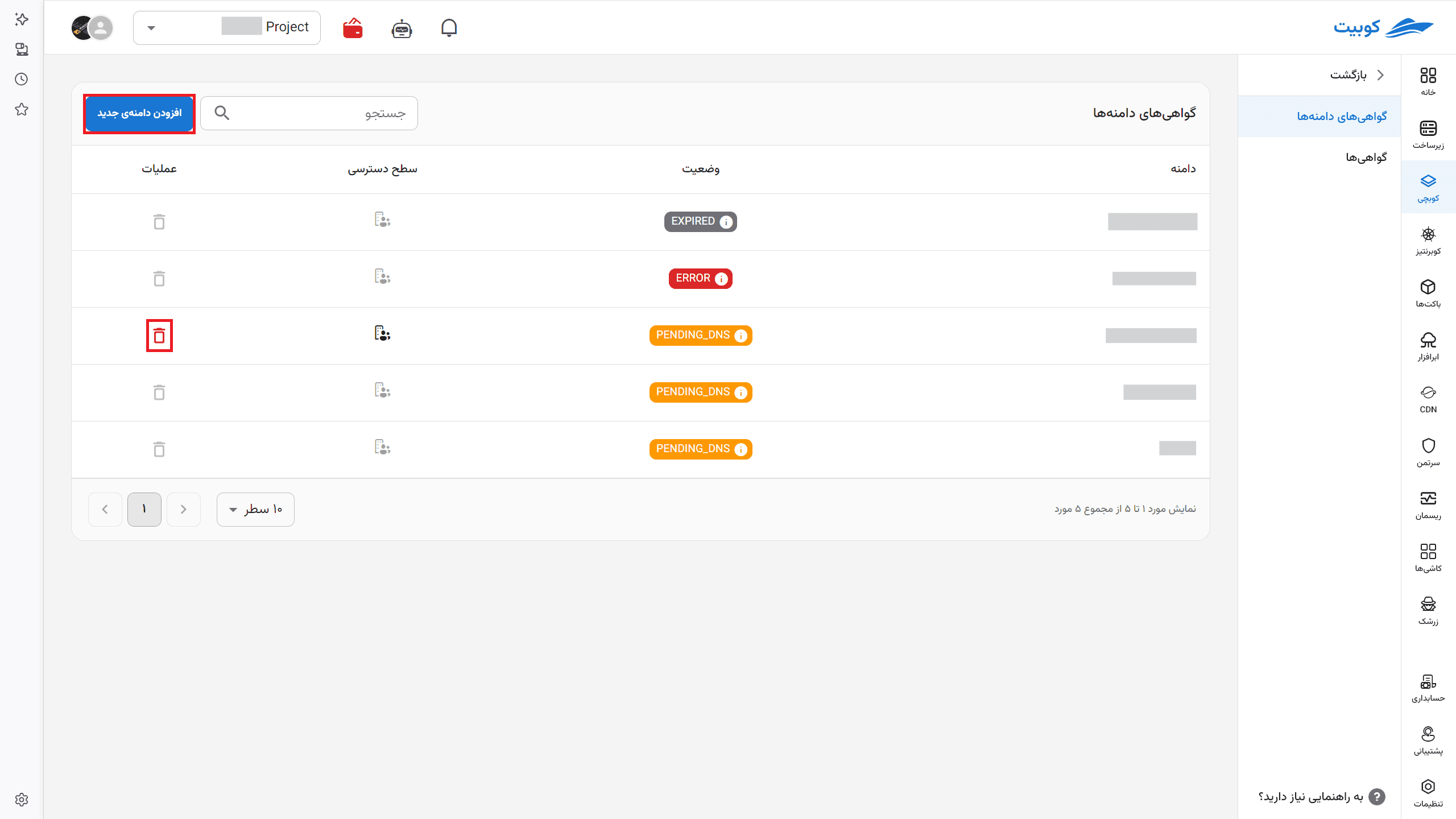
To register a domain:
- Select Add new domain.
- Enter the fully qualified name under Domain, for example
example.comorapp.example.com. - Check Secret Name (In cluster). Kubchi suggests a name based on the project and domain. A custom name may contain lowercase English letters, numbers, and hyphens only, and it must not conflict with an existing Secret or certificate.
- Choose how the certificate is managed and select an access level.
- Select Add.
The form initially selects Organizational access. If the certificate is only for the current project, change it to Private before adding the domain.
Issue a certificate automatically
Auto issue TLS certificate is enabled by default. Kubchi uses Let's Encrypt to issue a wildcard certificate for the domain and renews it automatically.
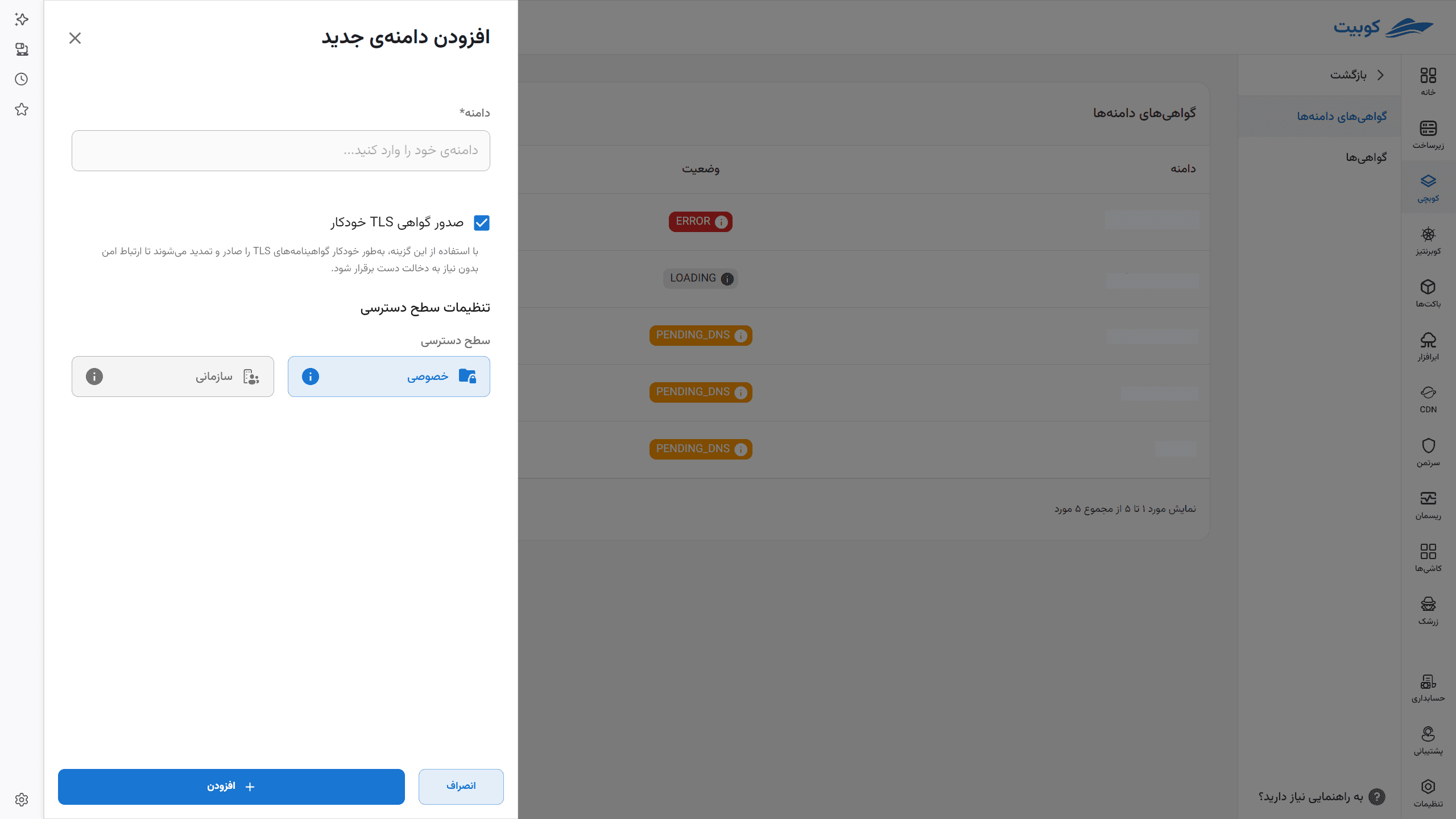
After registration, add the DNS record shown by the panel. Until Kubchi finds that record, the domain remains in PENDING_DNS.
Import an existing certificate
Disable Auto issue TLS certificate when you already have a certificate. Enter these values in PEM format:
- CA certificate: the issuing CA certificate or certificate chain.
- TLS certificate: the domain certificate.
- TLS key: the matching private key.
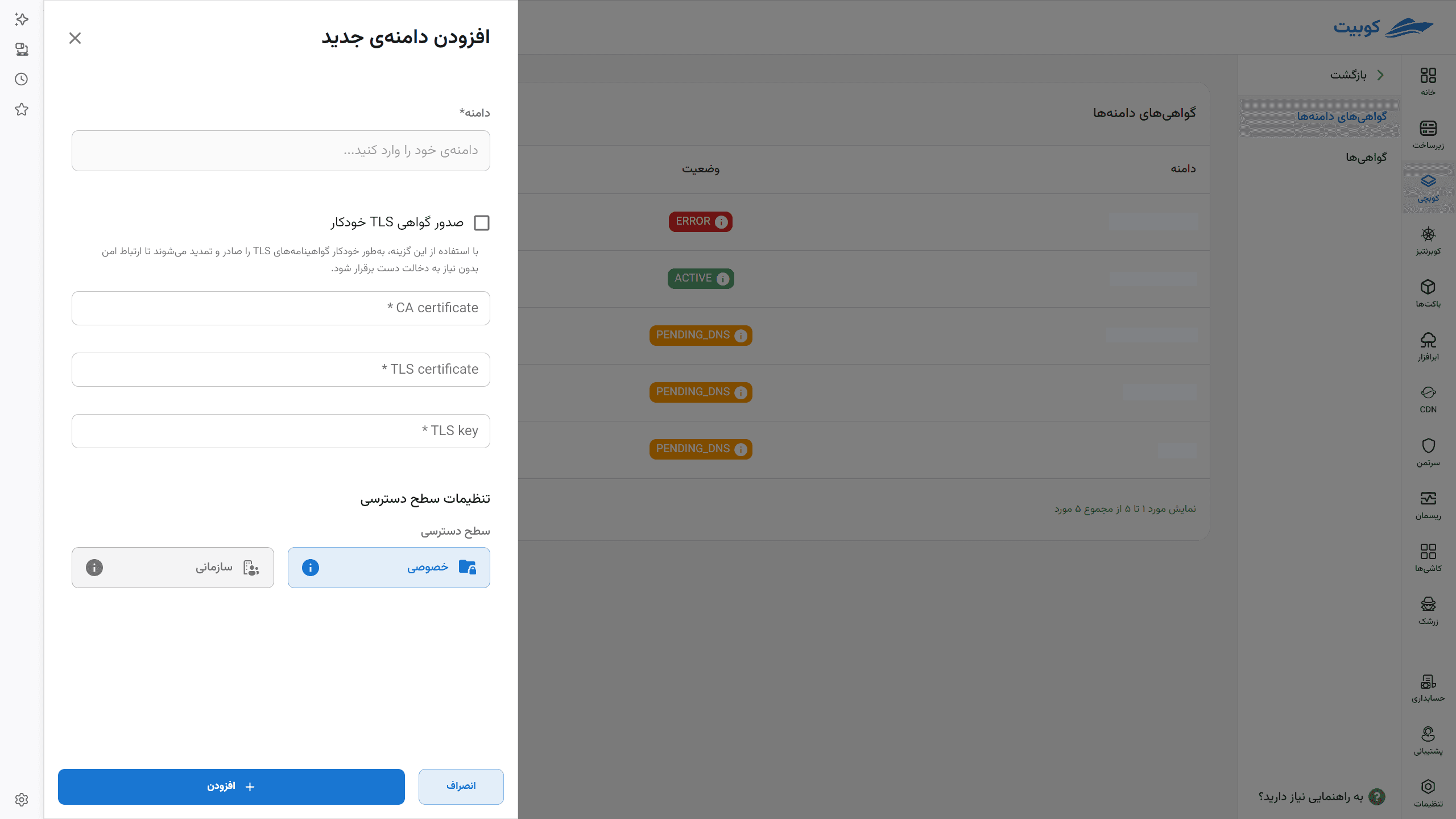
The private key is confidential. Do not place it in a ticket, message, or documentation screenshot. Kubchi validates the certificate and key before creating the domain.
Choose an access level
The access level controls which projects can read the certificate Secret:
- Private: only the current project can use the domain and its Secret.
- Organizational: the current project still owns the domain, while projects in the same organization and on the same cluster can read its Secret.
Use Private when only one project needs the domain.
Configure DNS for automatic issuance
After you register a domain with automatic issuance, Kubchi opens DNS connection tutorial. You can open it again by selecting the domain row. Add the displayed Type, Key, and Value without modification at your DNS provider. The required record type is CNAME.
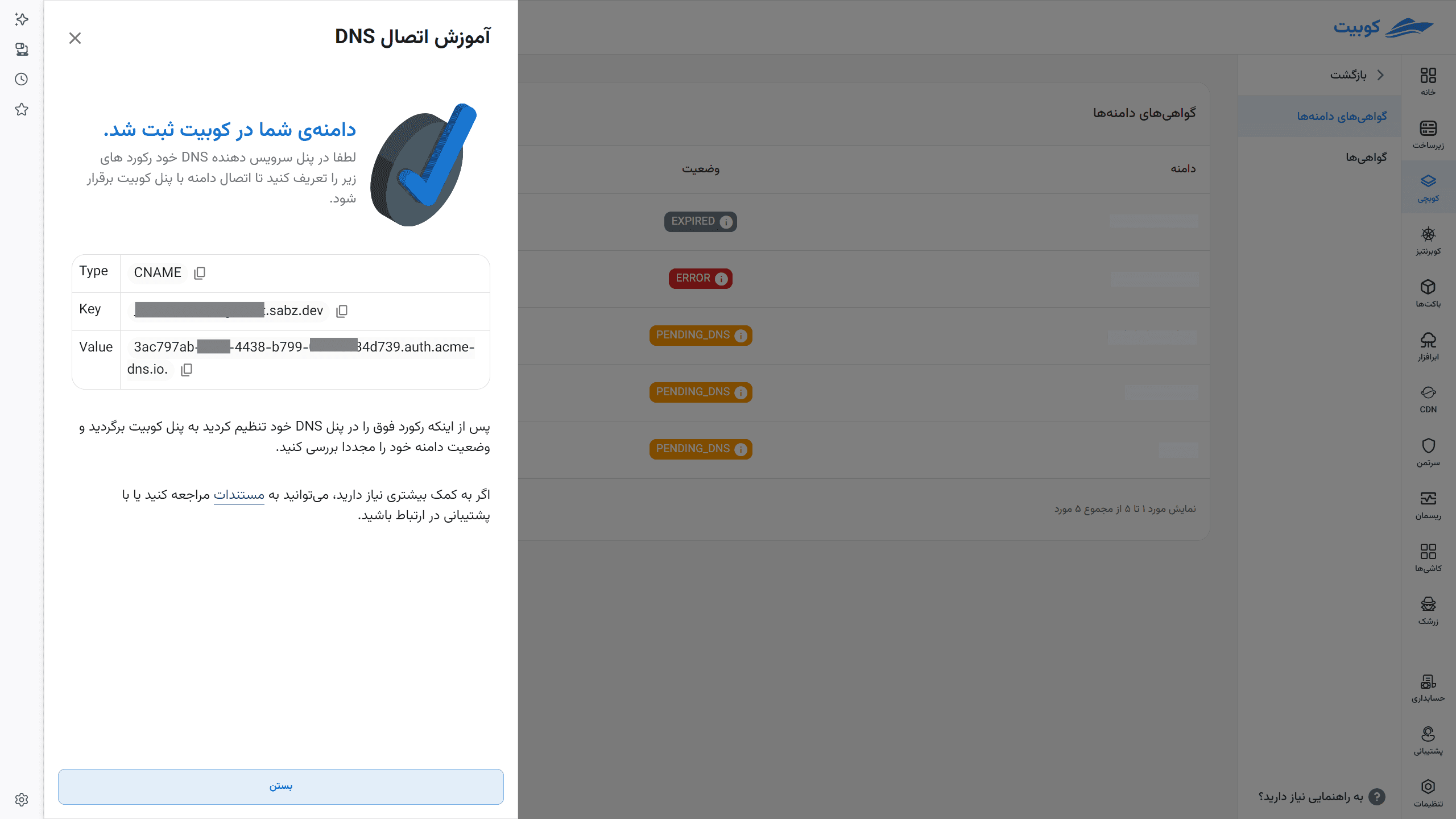
If your DNS provider has a CDN or proxy option, disable it for the validation record so that Kubchi can resolve the actual CNAME target. Then:
- Wait for the DNS change to propagate.
- Return to Domain Certificates.
- Select Refresh for the domain.
Kubchi checks the CNAME first. After DNS validation succeeds, certificate issuance starts. The certificate Secret becomes available to the project when it is ready.
Domain statuses
PENDING_DNS: the CNAME record is missing or has the wrong value.ISSUING: DNS is valid and certificate issuance is in progress.ACTIVE: the certificate is valid. Valid until shows the remaining number of days.EXPIRED: the certificate has passed its expiry date.INVALID_DATA: certificate data in the Secret is invalid or unreadable.UNKNOWN: Kubchi cannot determine the certificate state from the cluster.ERROR: the status check failed. Check the cluster connection and service access, then select Refresh again.
Use the domain in a Pack
After the certificate becomes ACTIVE, open Pack Configuration. Use the domain as the Ingress host and the name under Certificate as the TLS Secret. The chart defines the exact field names, and some charts do not provide these inputs.
An ACTIVE certificate does not guarantee that the application is reachable. If the request still fails, check the Pack's Ingress and Service resources, the application's main DNS record, and the network path to the Ingress Controller. The CNAME configured for ACME validation does not replace the DNS record that directs application traffic to the Ingress.
View certificates
Under Domain Certificates, select Certificates. This page lists the certificate name, status, namespace, and related project. A certificate that is not associated with a known domain in the organization's projects appears as Without project.
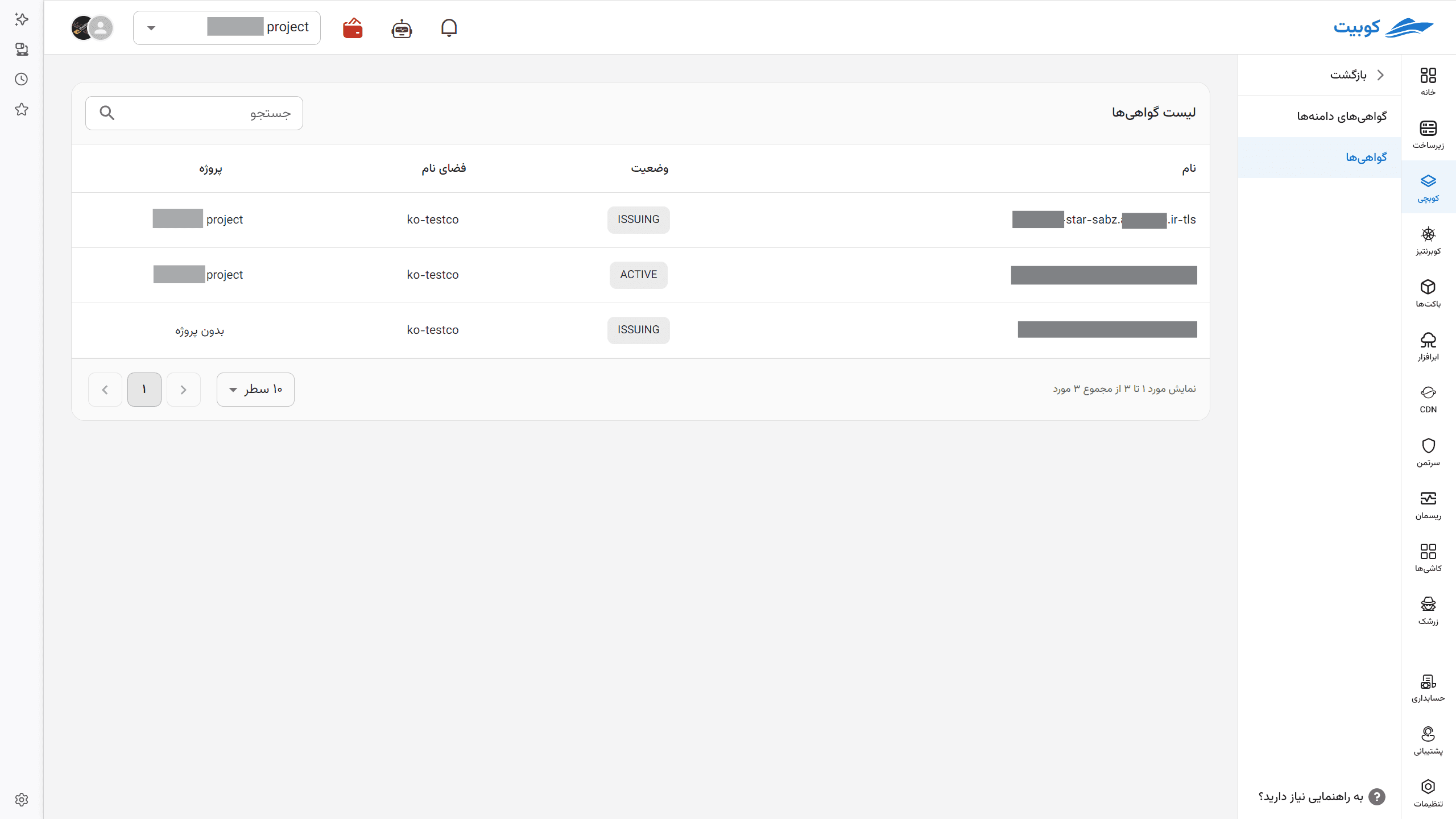
The certificate list uses the ACTIVE, ISSUING, EXPIRED, and UNKNOWN states.
Delete a domain
Open the action menu for the domain, select Delete, and review the confirmation. Deleting a domain also removes its managed certificate and TLS Secret from the cluster.
Before confirming, make sure no Pack or Ingress uses that Secret. Otherwise, HTTPS access to the application will stop working.
An Organizational domain may be owned by another project. You can use it in the current project, but deleting it requires permission in the owner project.
Troubleshooting
The domain remains in PENDING_DNS
- The record Type must be
CNAME. - Copy Key and Value exactly from the panel.
- Disable the CDN or proxy for the validation record.
- Wait for DNS propagation, then select Refresh.
Automatic issuance is unavailable
Check that cert-manager is installed and healthy under cluster add-ons. Kubchi cannot issue an automatic certificate without it.
The imported certificate is invalid
Check the PEM format, the match between TLS certificate and TLS key, the CA chain, and the certificate validity period. Keep the certificate's BEGIN and END lines.