

Manage organization members
A person must belong to an organization before they can view its resources or work in it. Authorized administrators can invite members, change membership status, and grant direct or group access.
Activate the organization, then open Settings and Users. Available actions depend on your permissions and the organization's identity methods.
How is a member added?
A membership can originate from a Kubit invitation, LDAP synchronization, or SAML sign-in. The source affects creation and sign-in, but not the member's role or access level.
In Added Through, the panel labels invited members Kubit User and LDAP or SAML members Organization User. It does not distinguish LDAP from SAML in this column.
Invite a Kubit user
On the users page, select New User, then Kubit User.
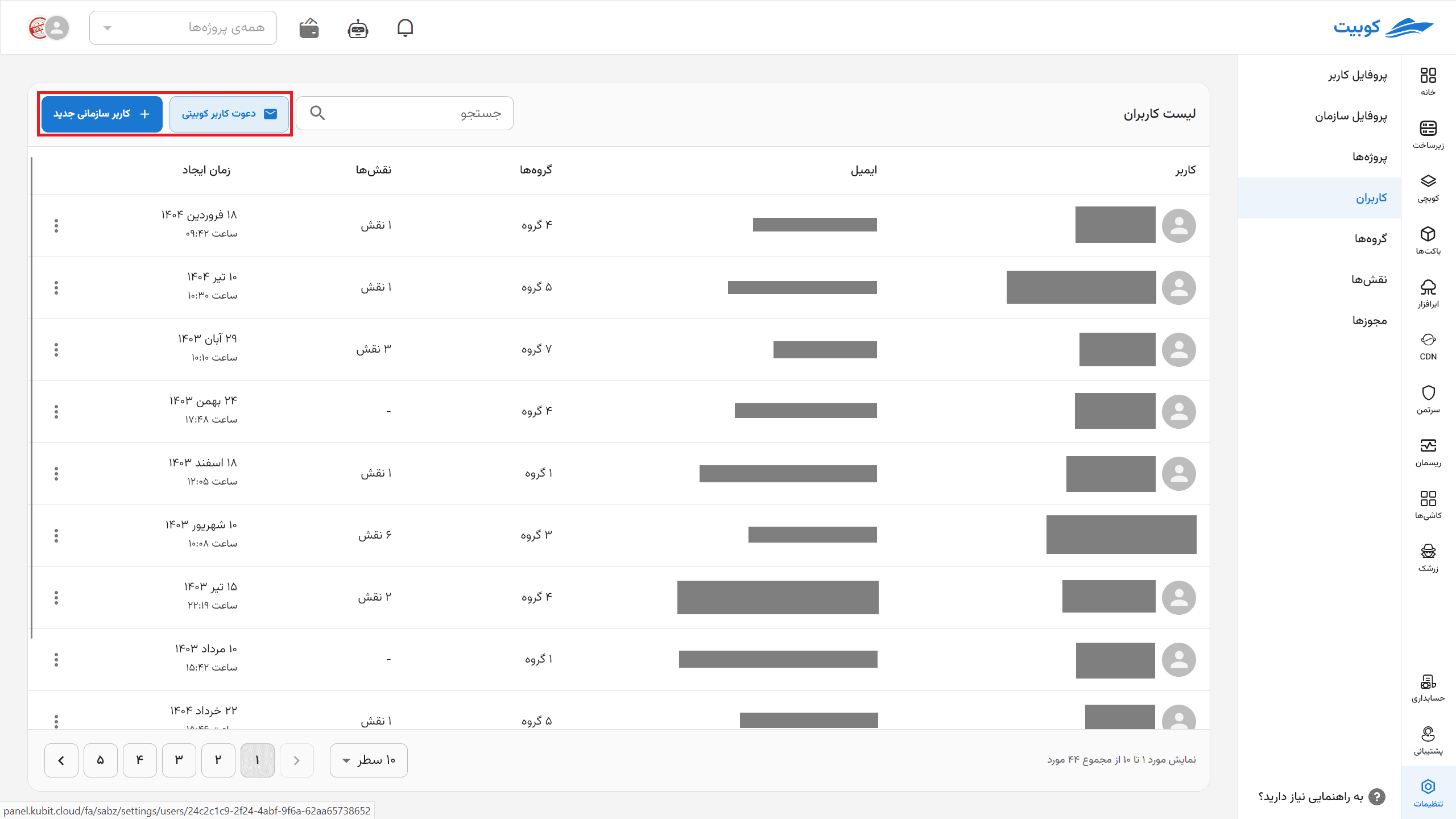
Enter the person's email or phone number; at least one is required. Kubit sends the invitation and also gives you its link. Share the link only with that person. An invitation is not an active membership until accepted.
Accept an invitation
An existing Kubit user signs in and confirms the organization. The account email or phone number must match the invitation. A new user registers and verifies an account first; see Enter your account information.
Expired invitations cannot be accepted. An authorized administrator can view the link and renew it after expiration. Used, incorrect, or duplicate invitations are also rejected.
LDAP and SAML users
LDAP and SAML are organization-specific services and have no public-panel connection form. An organization can use either or both.
Microsoft Active Directory connects through its LDAP-compatible interface and is documented under LDAP. With a full writable connection, permitted panel changes may update the directory. In read-only mode, Kubit only reads mapped information; changes must be made in the source directory and synchronized.
A SAML member is normally created after the first successful identity-provider sign-in. User attributes and group membership may be mapped from that provider.
An SSO label beside the organization in the profile menu indicates organization sign-in. It does not describe the person's role or access level.
View and edit a member
Select a member to view their organization profile, membership status, groups, and direct roles. Editing the name or avatar changes that organization-user profile. See Advanced profile differences.
Whether an LDAP user can be edited depends on the connection. Read-only users cannot be changed in the panel; a full connection permits only mapped writable fields. Username and membership source cannot be changed from this form.
Activate, deactivate, or delete a member
Deactivation stops organization access while retaining the membership so it can be restored later. Deletion removes the membership. Before deleting, review direct roles, groups, and responsibilities. Neither action deletes the person's Kubit account.
Add a member to a group
Open Groups on the member details page, select Add to Group, choose one or more groups, and save. The member receives the roles assigned to those groups.
Removing a group removes only access from that group. Direct roles and other groups can still provide the same permission. See Add or remove group members.
Assign a direct role
Under Roles on the member page, select Assign Role. Choose a role and either organization scope or a specific project. Organization roles apply wherever their permissions allow; project roles apply only in that project.
Removing a direct role does not remove roles received from groups. See Permissions and roles and Project access.
Effective member access
Effective access combines direct roles, group roles, and each role's scope. Removing one path may not remove a permission supplied by another path.
When troubleshooting, inspect the member's direct roles, groups, and project assignments together, then identify which role contains the permission.
Link Kubit and organization identities
One person may have an invited record and another record from LDAP or SAML. Kubit can merge them so both Kubit and SSO sign-in reach one membership.
After a merge, Added Through still describes the membership's source and may not list every available sign-in method.