

User profiles in Kubit
Most people have one Kubit account and one profile in their organization. In that common case, changing a name or avatar in the Kubit authentication service or in the panel has the same result.
If you later join another organization or receive another organization-user record, the distinction matters: the Kubit account is your global identity, while each organization profile belongs only to that organization.
Which profile page should I open?
Open Kubit account settings for your password, TOTP two-factor authentication, email, phone number, sessions, and security events. These settings are shared across organizations.
To change how your information appears in one organization, open Profile Settings in that organization's panel. Check the active organization before editing.
Kubit account profile
Open Kubit account settings. If necessary, sign in first; Kubit then returns you to the settings page.
Change the account name and avatar
Select Edit to change the avatar, first name, and last name. The first name is required; the last name may remain empty. Email and phone number appear in the same form but have separate change actions. The username cannot be changed there.
Change the account email
Select Change beside the email. The new address must be valid and unused by another account. Kubit changes it only after you enter the code sent to the new address. Until then, the old address remains active.
Change the account phone number
Select Change beside the phone number. The new number must not belong to another account, and Kubit verifies it by SMS.
If the account already has a national ID, Kubit checks it again after the phone-number change. A failed check clears the stored national ID, which must then be registered or verified again.
Keep the new number available. The change cannot finish without its SMS code.
Account security
Password, TOTP, active sessions, and security events belong to the Kubit account and do not depend on your organization role. See Change your password, Two-factor authentication, Active sessions, and Account security events.
Organization-user profile in the panel
Activate the required organization, open the profile menu, and select Profile Settings. This page stores the details for your membership in that organization.
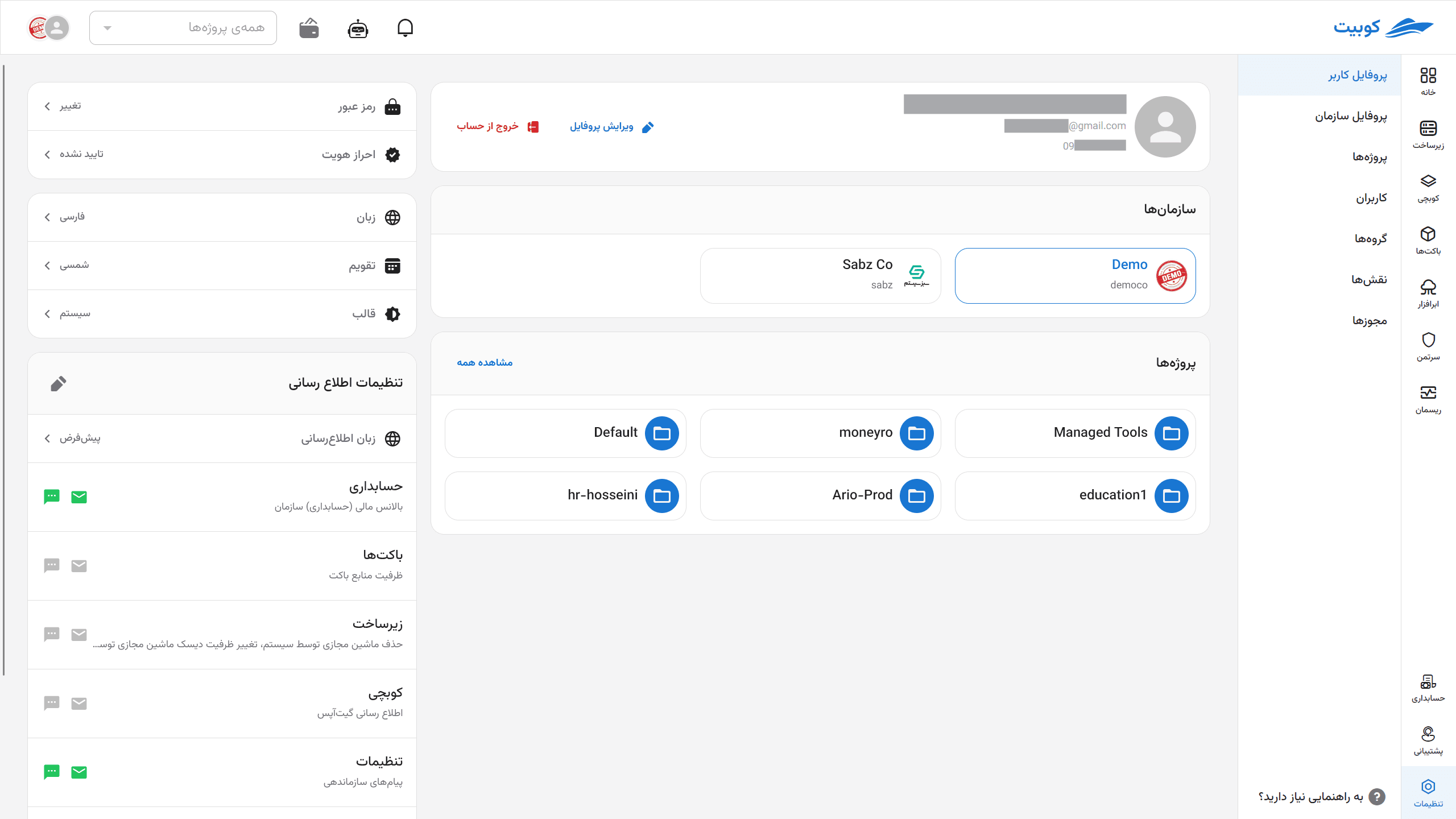
You can change the first name, last name, and avatar. Username, email, and phone number may also appear; editability depends on the account and organization configuration.
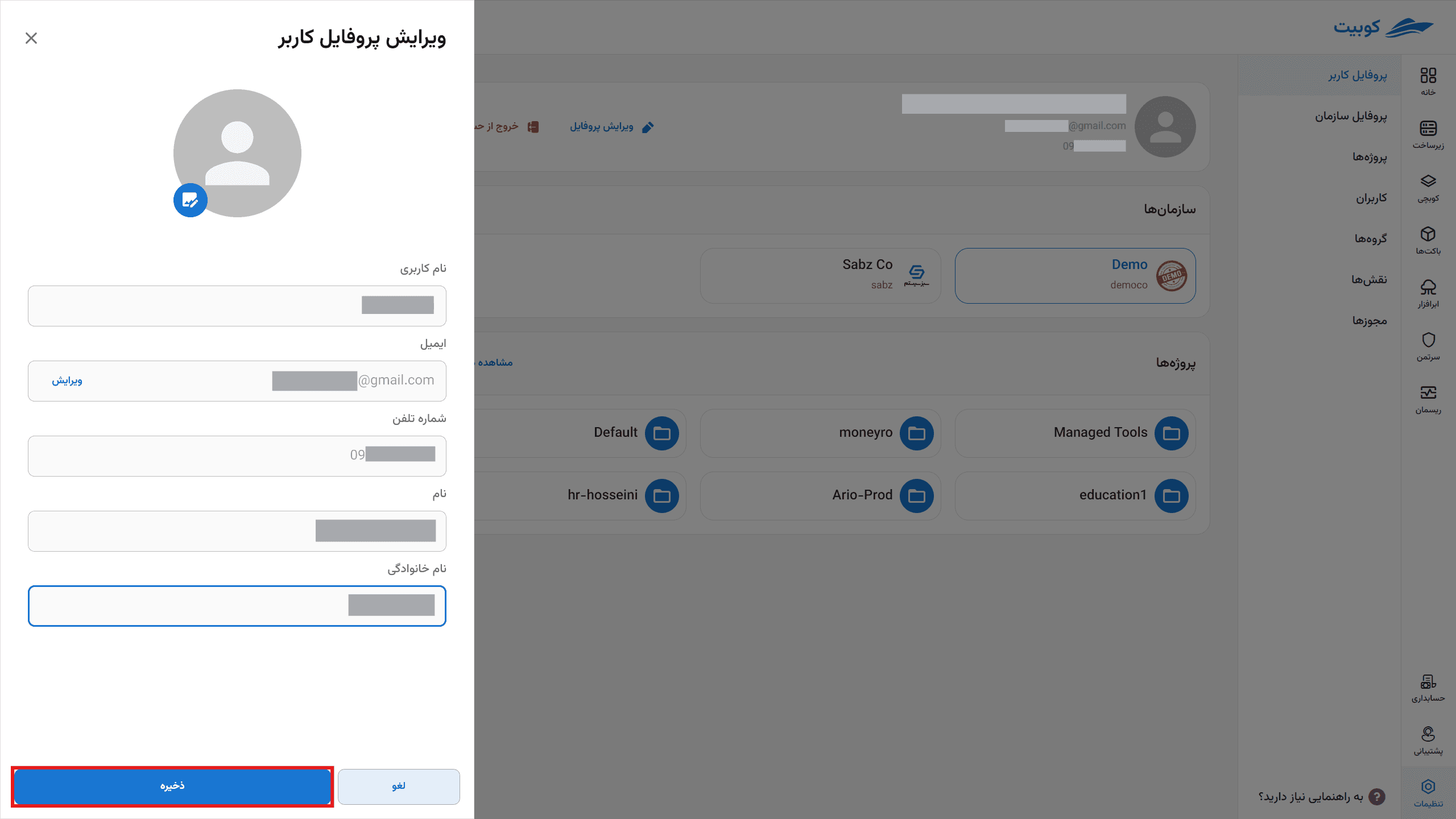
Treat these changes as organization-specific when you belong to multiple organizations.
Advanced profile differences
While a Kubit account is linked to only one organization-user record, edits in the authentication service or panel are applied consistently. If another organization-user record is later created, organization profiles become independent. An edit in one organization's panel then changes only that record.
When an organization profile field is empty and linked to a Kubit account, Kubit displays the corresponding account value. Two independent profiles may therefore still show the same name or avatar.
The Kubit authentication service manages your global account and sign-in security. The panel changes your profile in the active organization.
Organization users without a Kubit account
An LDAP or SAML user may not have a linked Kubit account. Their profile exists only in the organization, and editable fields depend on its identity configuration. Linking a Kubit account later allows both sign-in methods to reach the same membership, but does not merge profiles across organizations.
Panel notifications
Activate the organization and open Profile Settings. Under Notification Settings, choose the message language and enable or disable email and SMS for each available channel. Options depend on enabled services, verified contact details, and your permissions.