

Connect a Git repository and manage Packs with GitOps
GitOps stores each Pack manifest in a GitLab repository. Approved panel changes can be committed to the same file, while changes made in Git reach the Pack after synchronization and validation. GitOps is optional; normal Pack installation and management do not require a Git repository.
Kubchi connects to a GitLab project over HTTP or HTTPS. Each connection points to one repository and branch, and each Pack maps to one manifest file on that branch.
Prerequisites
The Kubit project must be connected to an active cluster. Prepare an existing GitLab repository and branch. The credential must allow Kubchi to read and write files and manage project webhooks.
Creating or changing GitOps connections requires repository and Pack permissions. Deleting a connection has a separate permission. If an action is missing, ask an organization administrator to check your role.
Back up the branch and its files before connecting an operational repository. An incorrect path may create a new file or cause a difference between the Pack and an existing manifest.
Prepare GitLab access
Kubchi supports two access methods:
- Token: the preferred choice for a service connection. Use a project token or a dedicated service account.
- Username & Password: use this only when your GitLab policy permits it for both the API and Git.
For a project token, open the GitLab project and go to Settings, then Access tokens. Set a recognizable name and an appropriate expiration date. The token must read the repository and branch, commit files, and create or remove project webhooks. In a common GitLab setup, the Maintainer role with the api scope provides these capabilities.
If your GitLab policy allows automatic token rotation, enable the self-rotation scope as well. Otherwise, replace the token before it expires. Grant only the required access and do not use the token of your everyday personal account.
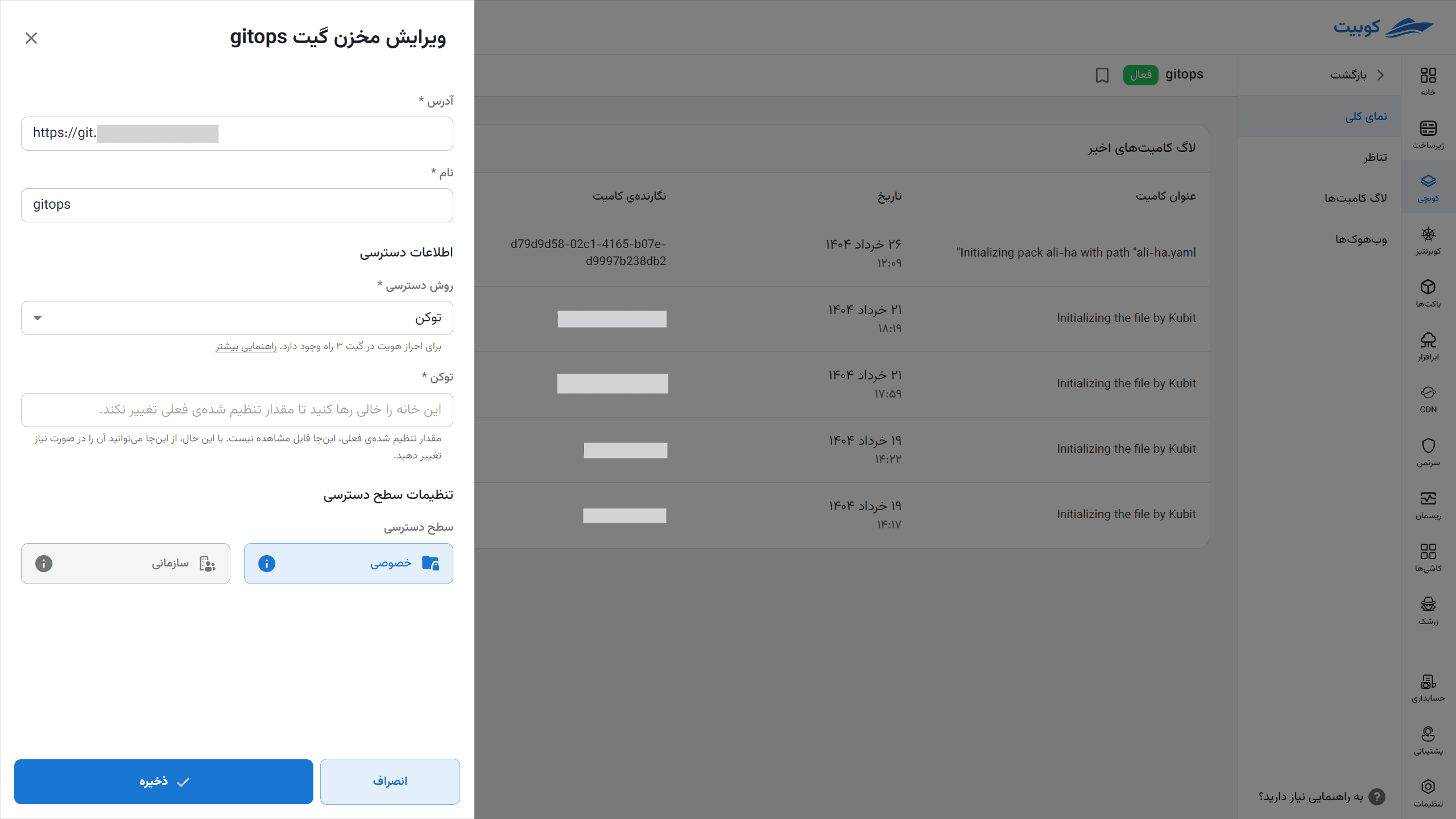
GitLab displays a new token once. Save it securely at creation time, then enter it in Kubchi. Kubchi does not display the stored value later. When editing the connection, leave the field empty to keep the current value or enter a replacement token.
Add a Git repository
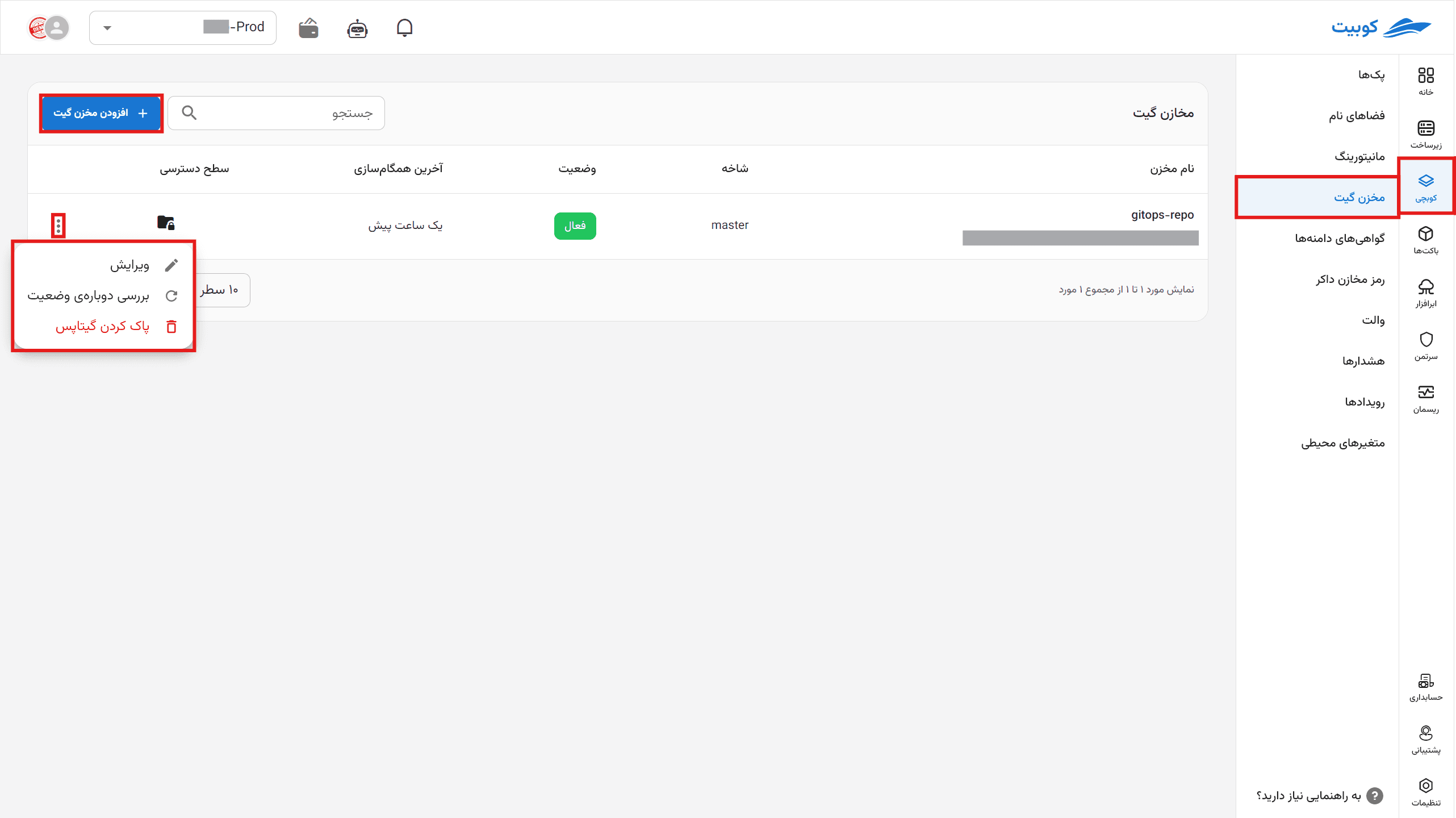
- From the Kubchi sidebar, select GitOps Repo.
- Select Add GitOps Repo.
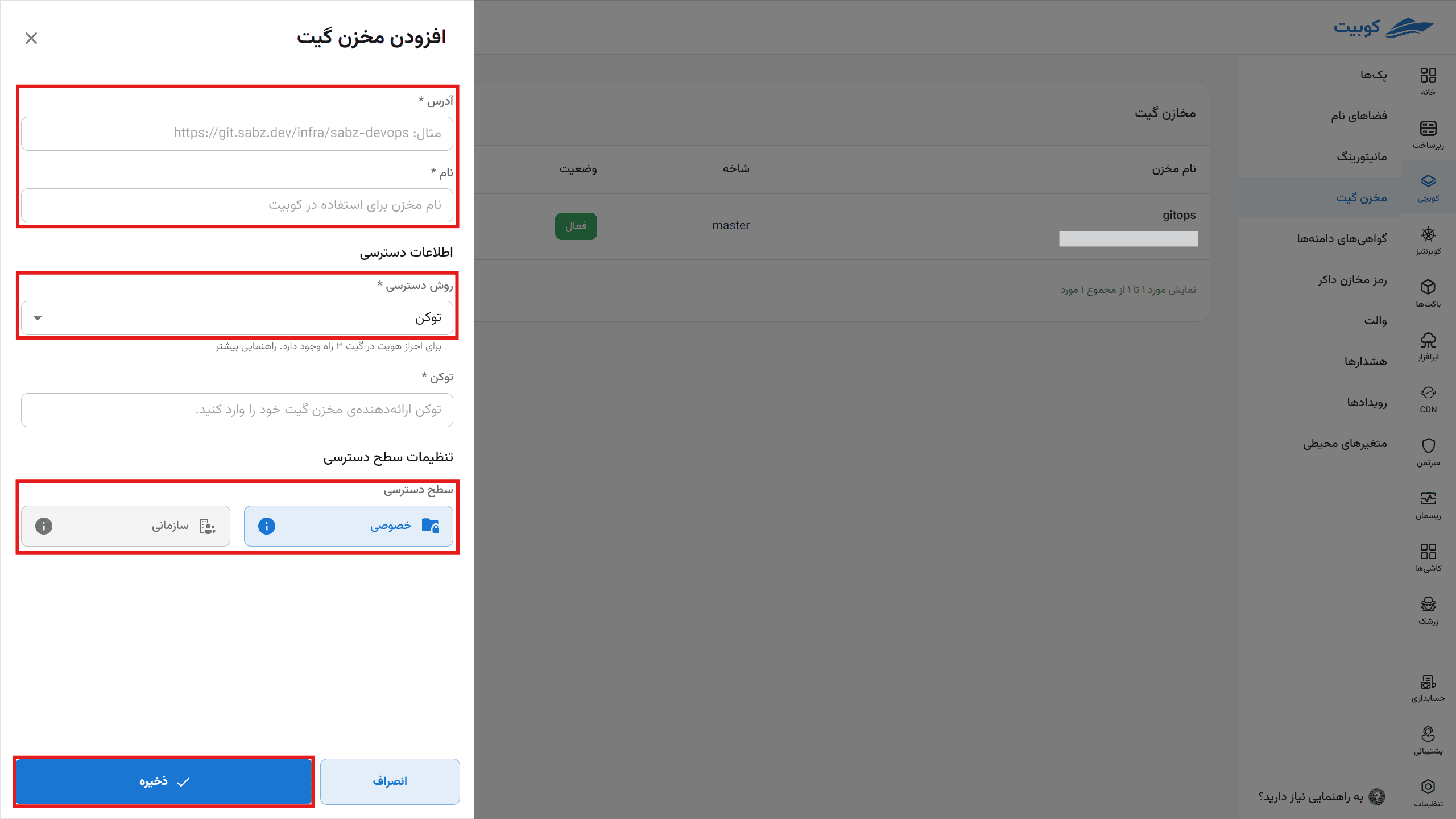
- Enter the GitLab project URL in Address, such as
https://gitlab.example.com/team/app-config. - Enter a Name for the connection. The panel may suggest one from a standard URL.
- Enter the exact existing Branch, such as
main. - Select Token or Username & Password under Access method and enter the credential.
- Choose the Private or Organizational Access Level.
- Select Save.
Kubchi checks repository access and the branch, then creates a project webhook in GitLab. The connection is not created when the URL, branch, credential, or webhook permission is invalid.
Choose an access level
A Private repository is available only to its owner project. An Organizational repository still belongs to the project that created it, but other projects in the organization can select it for their Packs.
Only the owner project can edit connection details, replace credentials, or delete the repository connection. Before making it Organizational, confirm that its manifests are suitable for every project in the organization.
Inspect or edit a connection
The GitOps Repositories table shows the name and address, Branch, Status, Last Sync, and Access Level. Active means the most recent connection check succeeded. It does not confirm that every Pack file is free of differences or validation errors.
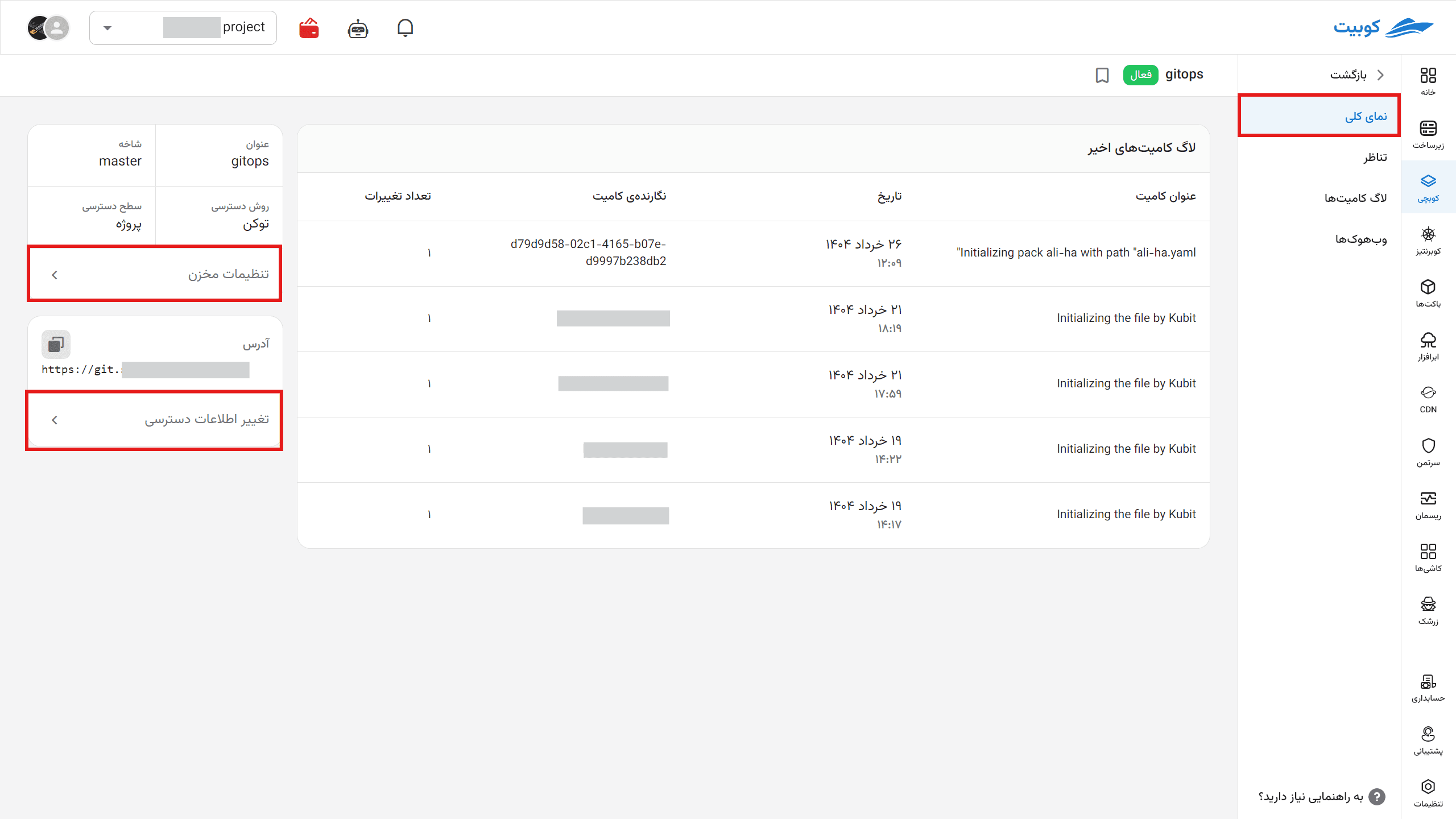
Select the repository name to open its details. Overview shows connection information and recent commits. Use GitOps Settings or Change credentials to edit the address, name, branch, access method, and Access Level.
If the Status is Error, open the row's three-dot menu and select Recheck status. This tests the current connection without changing files or Packs.
Connect a Pack to GitOps
- Open the Pack.
- Select GitOps from the Pack sidebar.
- Select an available Repository.
- Enter a file Path from the repository root, such as
packs/apps/my-app.pack.yaml. - Select Connect.
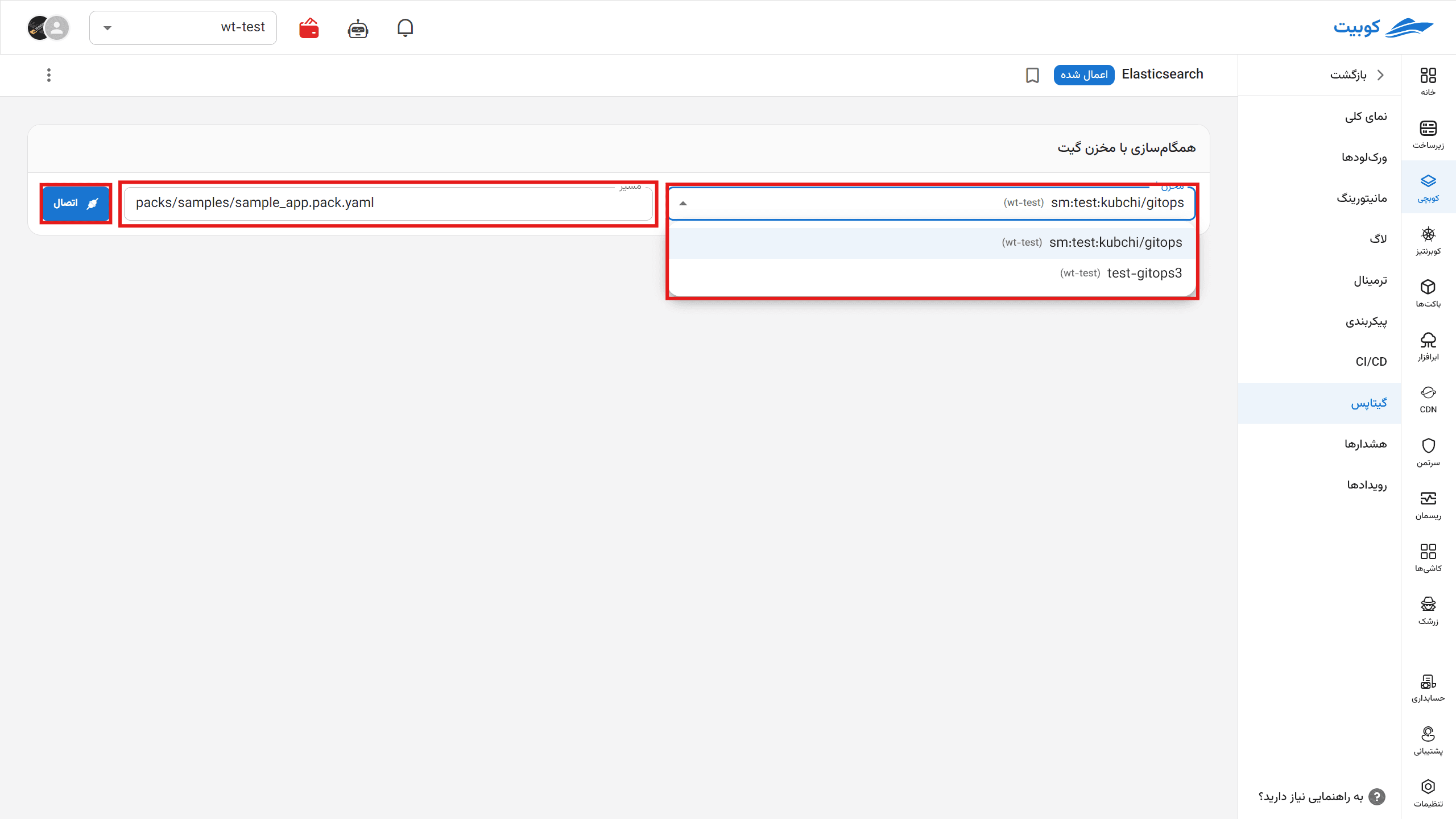
If the path does not exist, Kubchi creates and commits the current Pack manifest there. An existing file must contain a valid text manifest for the same Pack. When Git and the Pack differ, Kubchi reports the difference for review.
Use a unique path for each Pack. You can also enable GitOps while installing a ready-to-use Pack.
To remove the mapping, select Disconnect on the same page and review the confirmation. Disconnecting does not delete the Pack or its file from Git.
Manage file and Pack mappings
Open the repository details and select Mapping. The table compares Packs with manifest files found on the branch:
- Connected: the file and Pack use this repository and Path.
- Not connected: the Pack exists but has no GitOps file.
- File without a Pack: Git contains a valid Pack manifest, but the corresponding Pack does not exist in the project.
- Different repository or Path: the Pack uses another connection or Path, so actions on this row are limited.
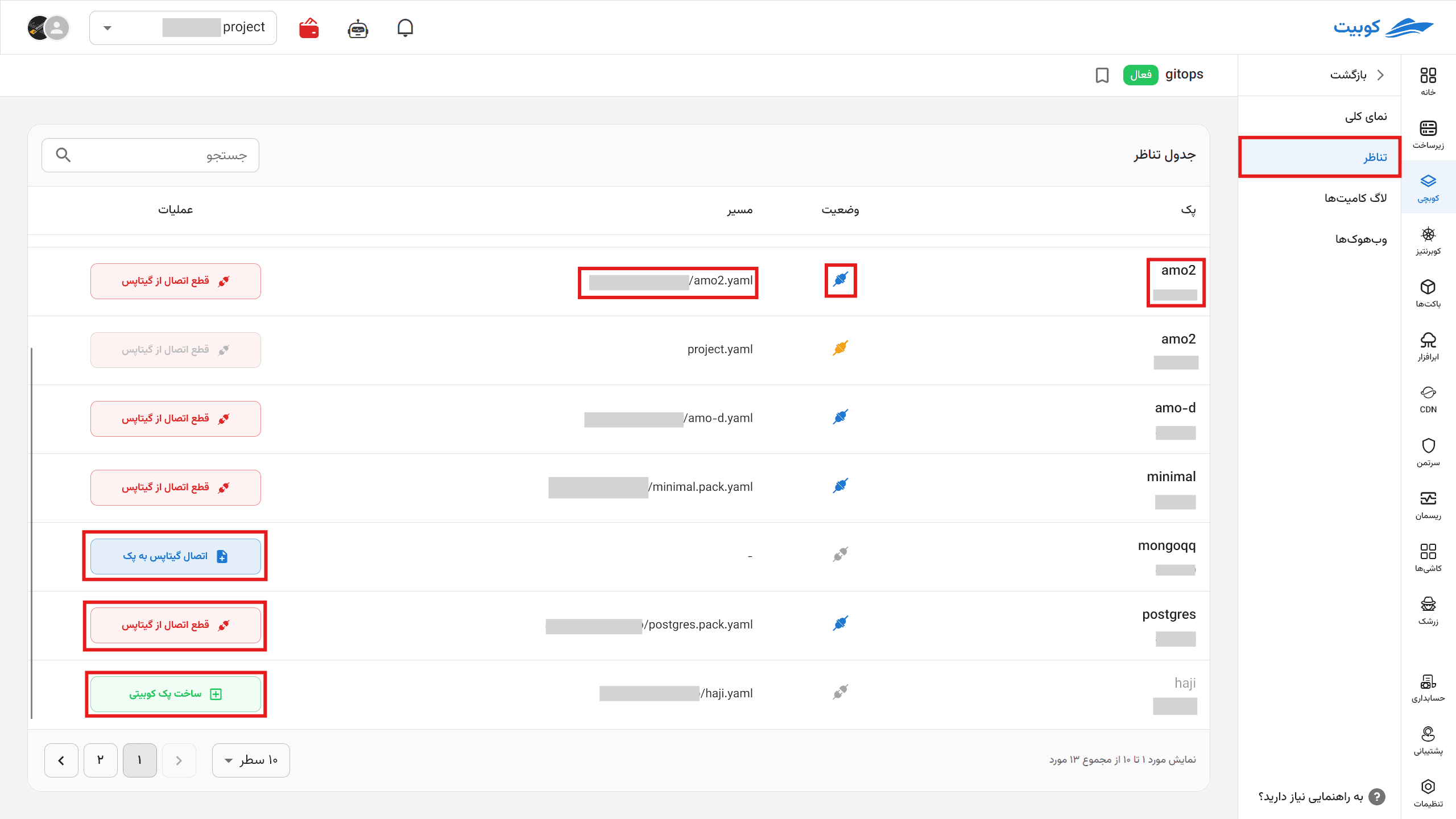
The table can connect an existing Pack to a file or disconnect the current mapping. Create Kubit Pack validates an existing file and creates a Pack in the project. Use it only when the manifest's namespace, Pack name, Pack repository, and chart are correct for the current project.
Change flow and differences
After a connection is active, changes can move in either direction:
- Panel to Git: when applying Pack configuration, you can also commit the new manifest to the repository.
- Git to Pack: the webhook starts synchronization after a repository change. Kubchi validates the new version and applies it when the Pack has no unresolved local change.
Saving a panel change without committing it leaves the Pack different from Git. A later Git change does not silently replace that local state. Choose the correct version under resolve Pack and GitOps differences.
View commits
Overview shows the five most recent commits. Commits Logs shows a longer list with each commit's title, date, author, and details link.
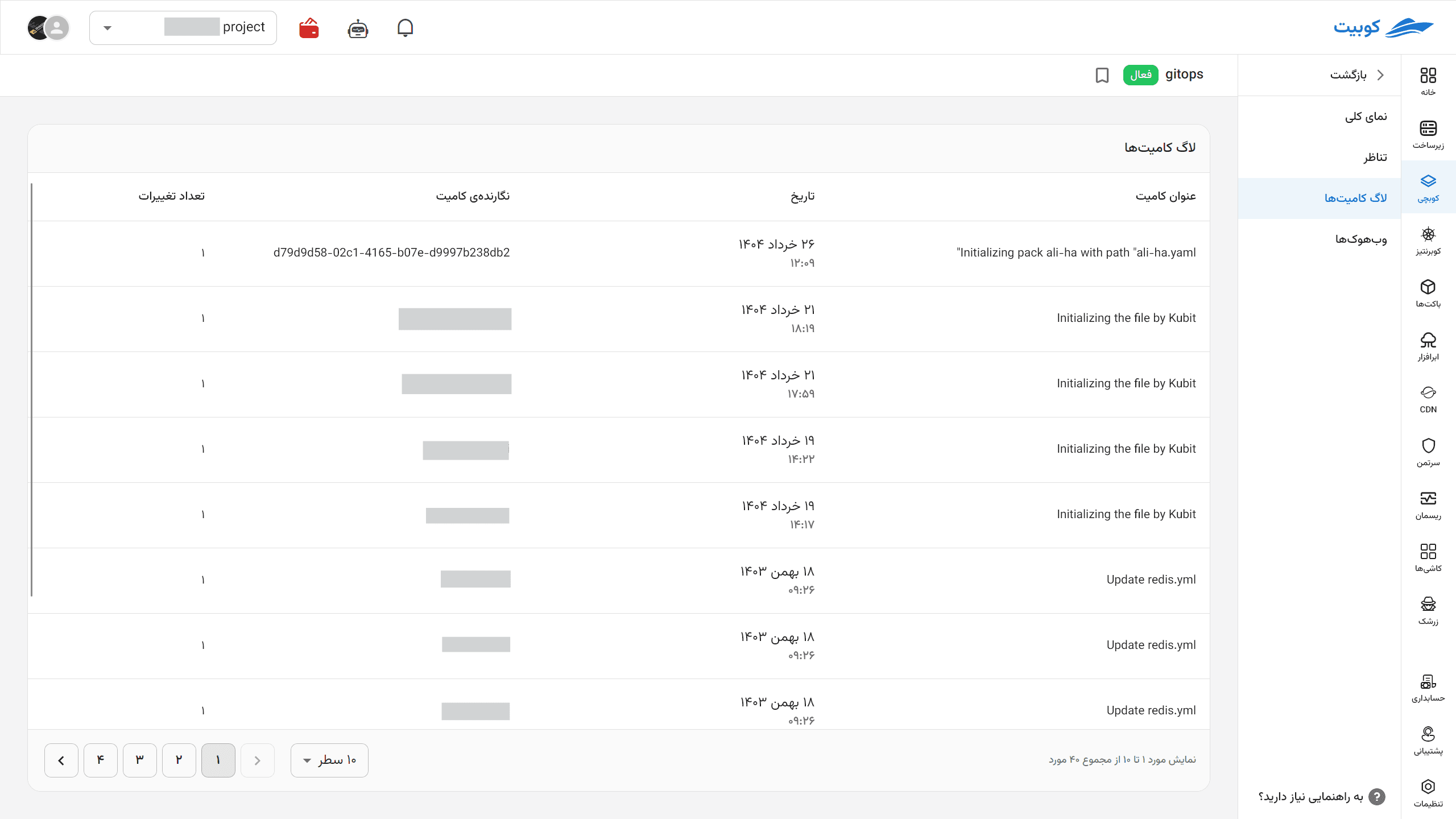
The list covers only the configured branch. Select View Details to inspect the full difference or related pipeline in GitLab.
Manage the webhook
When Kubchi creates a connection, it adds a GitLab project webhook with a one-year validity period. Webhooks shows its Expire Date and whether it currently Exist On Git.
The webhook URL contains a call token. Treat the full URL as a secret: do not place it in public logs or tickets, and share it only with the repository administrator when required.
Extend Webhook extends validity by one year. If more than 90 days remain, the date does not change. Extending the internal date does not recreate a webhook removed from GitLab. If Exist On Git is false, check the credential and webhook permission first.
Delete a GitOps repository
Open the three-dot menu for a repository owned by the current project and select Delete GitOps. Normal deletion:
- disconnects every Pack mapped to this repository;
- removes the Kubchi webhook from GitLab;
- removes the connection record from the panel.
It does not delete Packs, running workloads, or manifest files in Git.
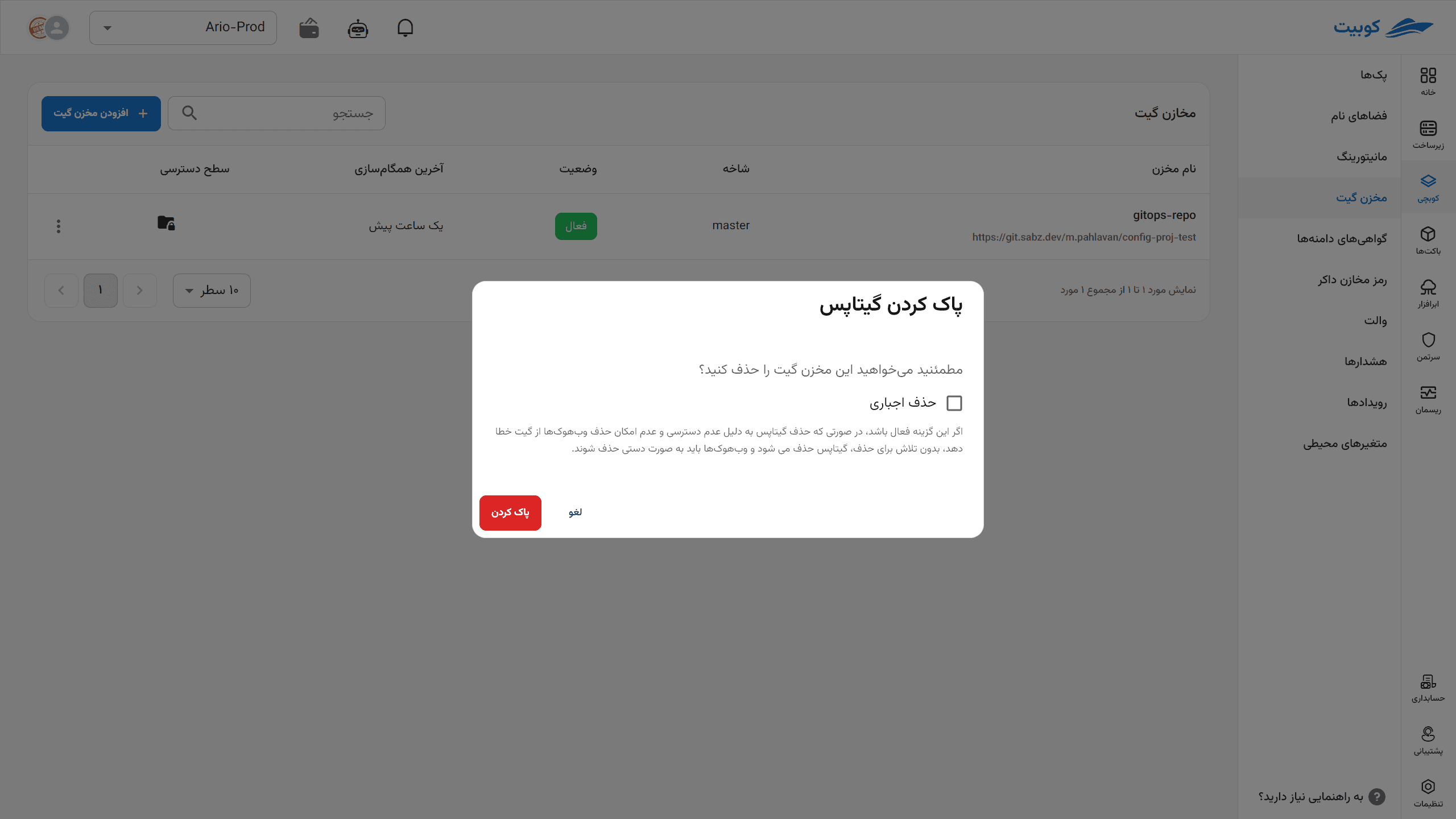
Enable Force delete only when an expired credential or unavailable GitLab instance prevents normal webhook cleanup. Kubchi then removes the connection, but the webhook may remain in GitLab and must be deleted there manually.
Common problems
The connection cannot be created
Address must be an HTTP or HTTPS GitLab project URL. Check that the branch exists, the credential is valid, and the repository is readable. A scope error usually means the token cannot use the API or write files.
Repository Status is Error
The token may have expired or been revoked, the branch may have been deleted, or the repository URL may have changed. Correct the values in GitOps Settings, then run Recheck status.
A Git change is not applied to the Pack
On Webhooks, check that the webhook exists in Git and has not expired. Then check Commits Logs to confirm that the change is on the configured branch. If the Pack has local changes, resolve the Git difference.
A file or Pack is missing from Mapping
The file must be a single-document text YAML file containing a valid Pack manifest. Its namespace must belong to the current project. Invalid files and files outside the project scope cannot be used in Mapping.
Edit or Delete is disabled
An Organizational repository may belong to another project. The current project can use it for a Pack, but only the owner project can edit or delete the connection. Missing role permissions can also hide or disable these actions.