

Manage Docker registry credentials
Kubernetes needs a registry address and sign-in credentials to pull images from a private registry. Store them on the Registry Credentials page and limit their use to the current project or make them available across the organization.
Kubchi synchronizes enabled credentials with the project so workloads can pull private images. This page does not store images or create a registry. To manage images in Kubit's container registry, see the Cloudware Docker Registry guide.
Prerequisites
The project must be connected to an active cluster. Prepare the registry address and an account or token that can pull images. Use the least access needed; a personal password or token that can publish and delete images is not a good choice for image pulls.
Viewing, adding, editing, and deleting credentials may require separate permissions. If you cannot see a button or action, ask an organization administrator to check your role.
View stored credentials
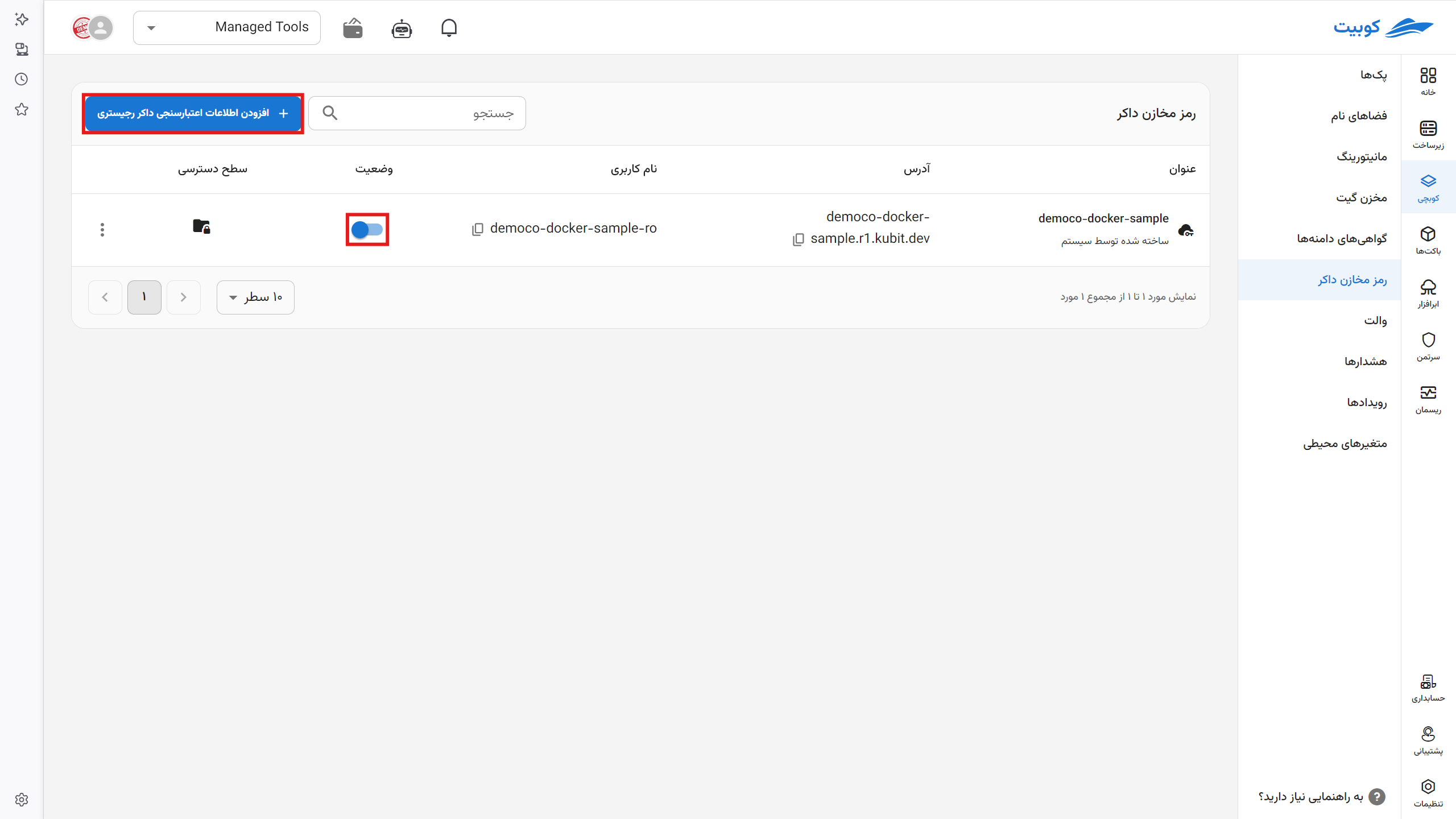
From the main Kubchi sidebar, select Registry Credentials. The table shows:
- Title: a name used to identify the record in the panel. It does not have to match the registry name.
- Address: the private registry address, such as
registry.example.com. - Username: the account or identifier used to sign in to the registry.
- Status: whether the credential is enabled for the current project.
- Access Level: whether the record is Private or Organizational.
Below each title, Created by user or Created by system identifies the record's source. The table never displays the password.
The password is available in that record's edit form, and the field can reveal its value. Open this form only in a secure environment, and grant registry credential edit permission only to people who need to view the sign-in details.
Add credentials manually
- On Registry Credentials, select Add Docker Registry Credential.
- Enter a recognizable Title.
- In Address, enter the registry address, such as
registry.example.com. - Enter the pull account's Username and Password, or use a pull token as the password.
- Select the Private or Organizational access level.
- Select Save.
Title, Address, Username, and Password are required. Kubchi rejects a duplicate address in the same project. If an Organizational credential already uses that address, you cannot create another record with it.
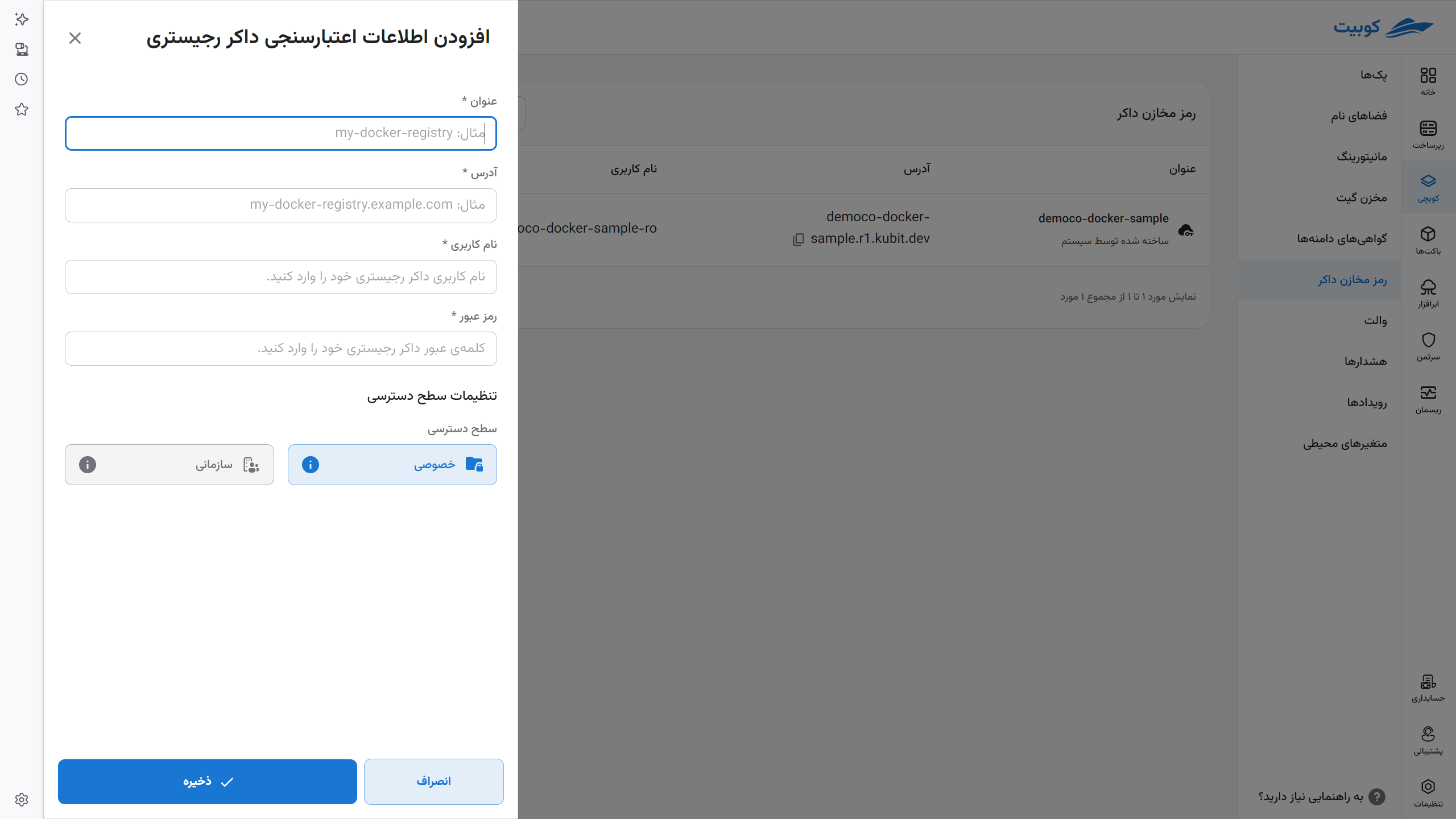
After saving, the new record appears in the list and is enabled for the current project. Synchronization with the cluster may take a short time.
Choose an access level
A Private record is available only in the project that created it. An Organizational record still belongs to its original project, but other projects in the organization can enable or disable it for their own use.
Only the owner project can edit or delete an Organizational record. Changing a Private record to Organizational cannot be reversed. If every project in the organization should not have access to the credentials, select Private when creating the record.
Enable or disable credentials for a project
The switch in the Status column controls whether the credential is used in the current project. Turning it off does not delete the record. For an Organizational record, it also does not change the status in other projects.
Disabling a credential does not immediately stop running containers, but the next private image pull may fail. Before changing the status, check which Packs pull images from that registry address.
Edit or delete credentials
Open the three-dot menu for a record created in the current project. To change the title, address, username, password, or access level, select Edit Docker Registry Credential and save the form.
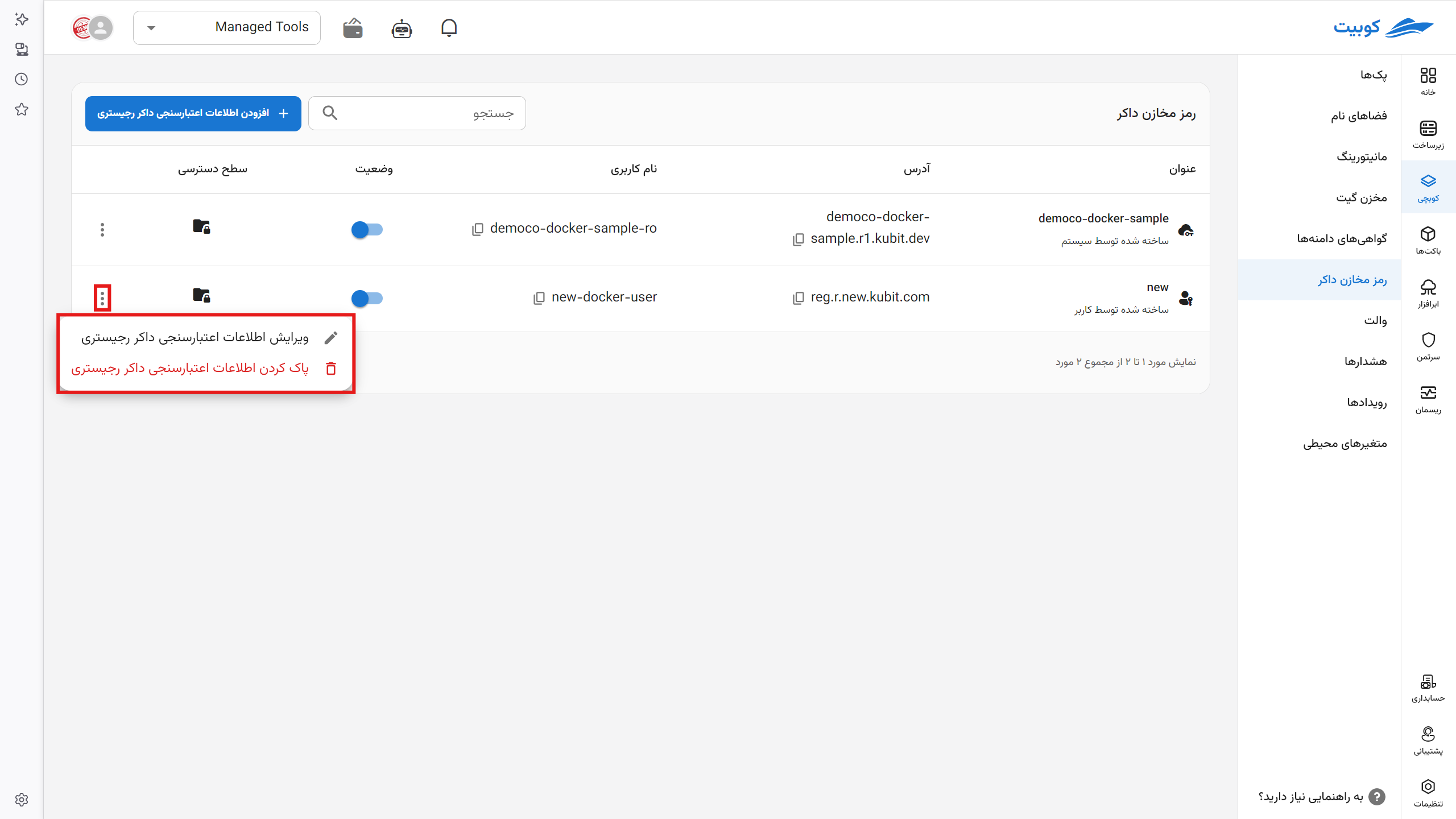
To remove a manual record, select Delete Docker Registry Credential and review the confirmation message. Image pulls may fail for dependent Packs after deletion, so check dependencies in the owner project and other organization projects first.
You cannot edit or delete a record owned by another project. Records marked Created by system are synchronized from their source service and cannot be edited or deleted from Kubchi.
After changing the sign-in details or record status, synchronization with the project may take a short time. If an image pull fails immediately after the change, wait briefly and check the workload again.
Common problems
A private image cannot be pulled
Check that the credential is enabled in the project. Compare its Address with the registry host in the image path, then check the username or token. The exact error appears on the Workloads page or in Pack events. ErrImagePull and ImagePullBackOff usually include more information about the address or authentication failure.
The address is a duplicate
A record with the same address exists in the current project or at the organization level. Search the table for it and edit it if the current project owns it. For an Organizational record owned by another project, change only its Status for the current project.
Edit or Delete is disabled
The record belongs to another project, or your role lacks the required permission. Only the owner project can edit or delete an Organizational record. If the system created the record, change it from the source service.