

Open a container terminal in Kubchi
The Terminal page opens an interactive session in one of a Pack's containers. You can use it to inspect files, processes, and network state or to run troubleshooting commands.
Terminal access is not read-only. Each command runs with the user and permissions configured in that container and may change files or data. Before running a command that makes changes, check its effect and decide how you will undo it.
Prerequisites and access
The Pack must have a running pod, and the selected container must include bash or sh. Your role must allow terminal access to the Pack. Opening the page does not confirm this permission; the panel checks it again when the session connects.
The terminal can access files, environment variables, and mounted data inside the container. Do not print passwords, tokens, private keys, or other sensitive values, and do not copy them into public output.
Open the Terminal page
From the Pack sidebar, select Terminal. You can also select the Show terminal icon for a workload or pod on the Workloads page. The Terminal page then opens with that workload or pod selected.
When you open the page directly, the panel selects the first valid workload, pod, and container, then connects automatically. If you used a pod shortcut, the initial selection is limited to that pod.
Select a container
Each session connects to one container. To change the source, select Disconnect first; the filters are disabled while connected. Then choose the source in this order:
- Select a workload from Workload.
- Select one of its pods from Pod.
- Select the container where you want to run commands from Container.
When you change the workload or pod, the panel selects the first valid pod and container under the new selection. Check all three resource names before reconnecting.
The terminal connects only to the selected pod and container. If the workload has several replicas, the files, processes, and state in this session may differ from the other pods. Disconnect and select another pod when you need to inspect a different replica.
Connect to the terminal
Select Connect. The panel starts bash when it is available in the image and falls back to sh otherwise. After the connection opens, the status below the terminal changes to connected and you can type as you would in a local terminal.
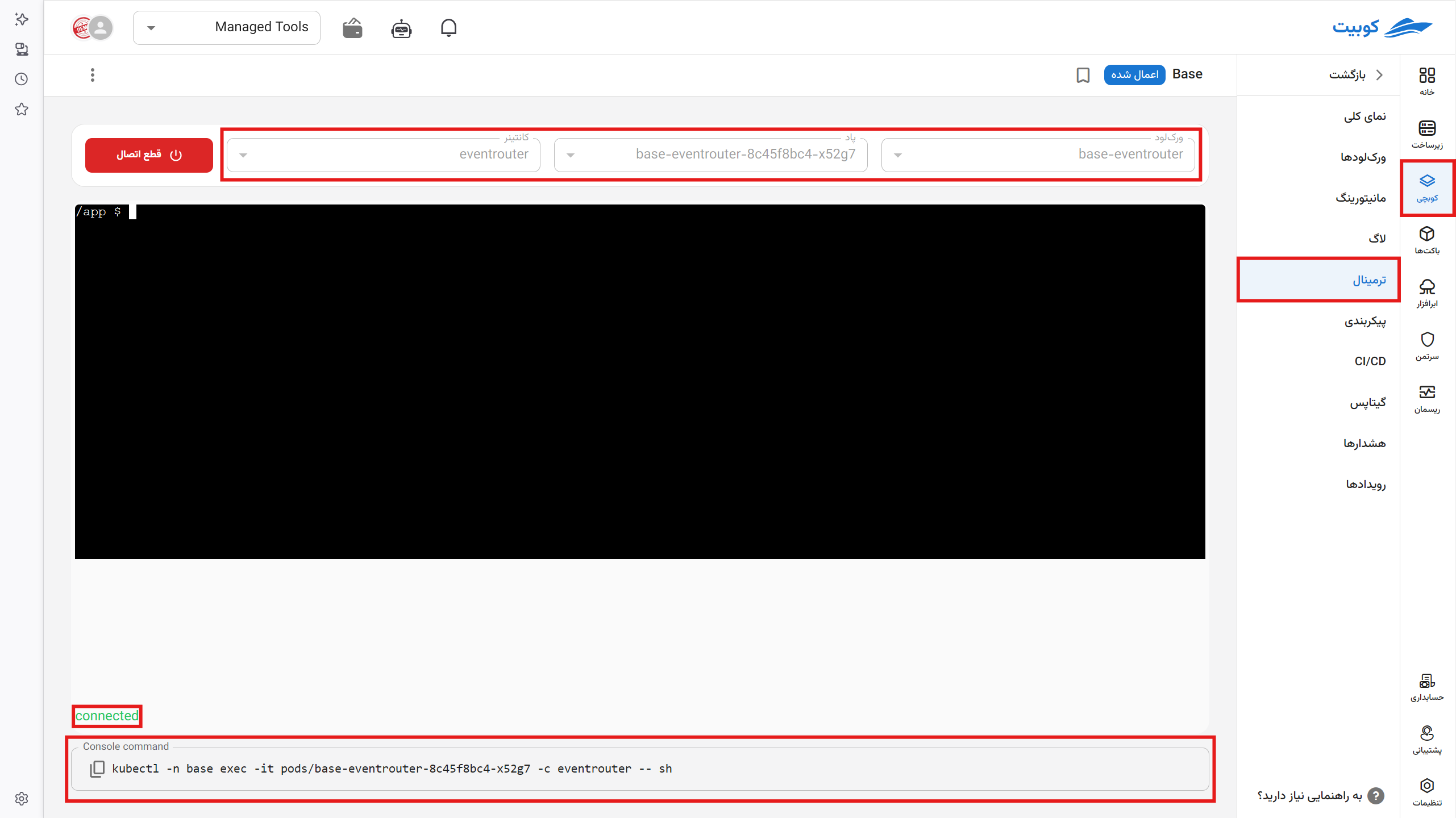
The session size follows the browser window. Ctrl+C stops the foreground command, and exit closes the shell and the current connection. You can also end the session with Disconnect.
A disconnected session cannot be resumed. Reconnecting clears the terminal display and opens a new shell. If Kubernetes replaces or deletes the pod while you are working, the current session closes. Select the new pod before reconnecting.
Use the terminal safely
Changes made directly to a container's files usually disappear when the pod restarts or is replaced. Apply persistent application settings through Pack configuration, and store persistent data in storage defined by the chart.
Keep these points in mind before running a command:
- Deleting files, installing packages, changing file permissions, or stopping processes can disrupt the application.
- Commands that print environment variables or configuration files may expose sensitive data.
- Access to the network, mounted files, and other services depends on the application's configuration. Do not assume the container can access more than your troubleshooting task requires.
- Start with read-only commands. Run a command that changes state only after checking its effect and recovery steps.
Use the kubectl command
The panel builds a kubectl exec command for the selected namespace, pod, and container at the bottom of the page:
kubectl -n <namespace> exec -it pods/<pod> -c <container> -- sh
Run the command only in an environment where kubectl is configured for the same cluster. Unlike the panel, this command starts sh directly. If the image does not include sh, replace it with an available shell or program. Check the namespace, pod, and container names before running the command.
Use the copy icon in the command box to copy it. Copying the command does not run it or open another panel session.
Common problems
The filters cannot be changed
The workload, pod, and container filters remain disabled while the session is connected or connecting. Select Disconnect, choose another source, and connect again.
The terminal does not connect
On the Workloads page, check that the pod and container still exist and are running. Also check your terminal permission, whether the cluster is active, and whether the browser can open the WebSocket connection.
The session closes immediately
Some minimal or distroless images do not include a shell. If the container has neither bash nor sh, the panel cannot open a terminal for it. Use logs, events, or another troubleshooting tool provided by the application team.
Changes inside the container disappear
A container's writable filesystem is usually temporary. When Kubernetes replaces the pod, it recreates the state from the image and Pack configuration. Apply persistent settings through Pack configuration. If the setting is not available there, the chart must define it as an input. Store data in persistent storage.
The terminal disconnects unexpectedly
A workload restart, pod deletion or replacement, shell exit, or network interruption closes the session. Select the current pod and open a new connection. To find out why Kubernetes replaced the pod, check Pack events and logs.