

Encrypt sensitive data and manage Vault keys
Vault encrypts sensitive text before you place it in Pack configuration. Put the complete encrypted output in vars or values; Pack Operator decrypts it during rendering with the key available in the Pack namespace.
Vault does not replace access control. A user with decryption permission can see the original text in the panel. Limit access to this page and to the resources that receive the rendered data.
For the technical reference:
- Use Vault in Pack explains the encrypted format and its use in
varsandvalues. - Vault commands in kubit-cli covers key creation and command-line encryption.
Prerequisites
- The project must be connected to a cluster and have at least one namespace.
- Encryption requires a Vault key that is available in the selected namespace.
- Before creating a key, decide whether only the current project or other projects in the organization need it.
Create a Vault key
Open Kubchi from the project sidebar. Under Vault, select Key Management, then:
- Select the add button.
- Enter a unique name. It must start and end with a lowercase English letter or number and may contain lowercase letters, numbers, and hyphens, for example
app-secrets. - Enable Automatically, generate secret key to create a random value. If you disable it, enter the secret key yourself. A manually entered key may contain ASCII characters only.
- Select Private or Organizational access.
- Select Save.
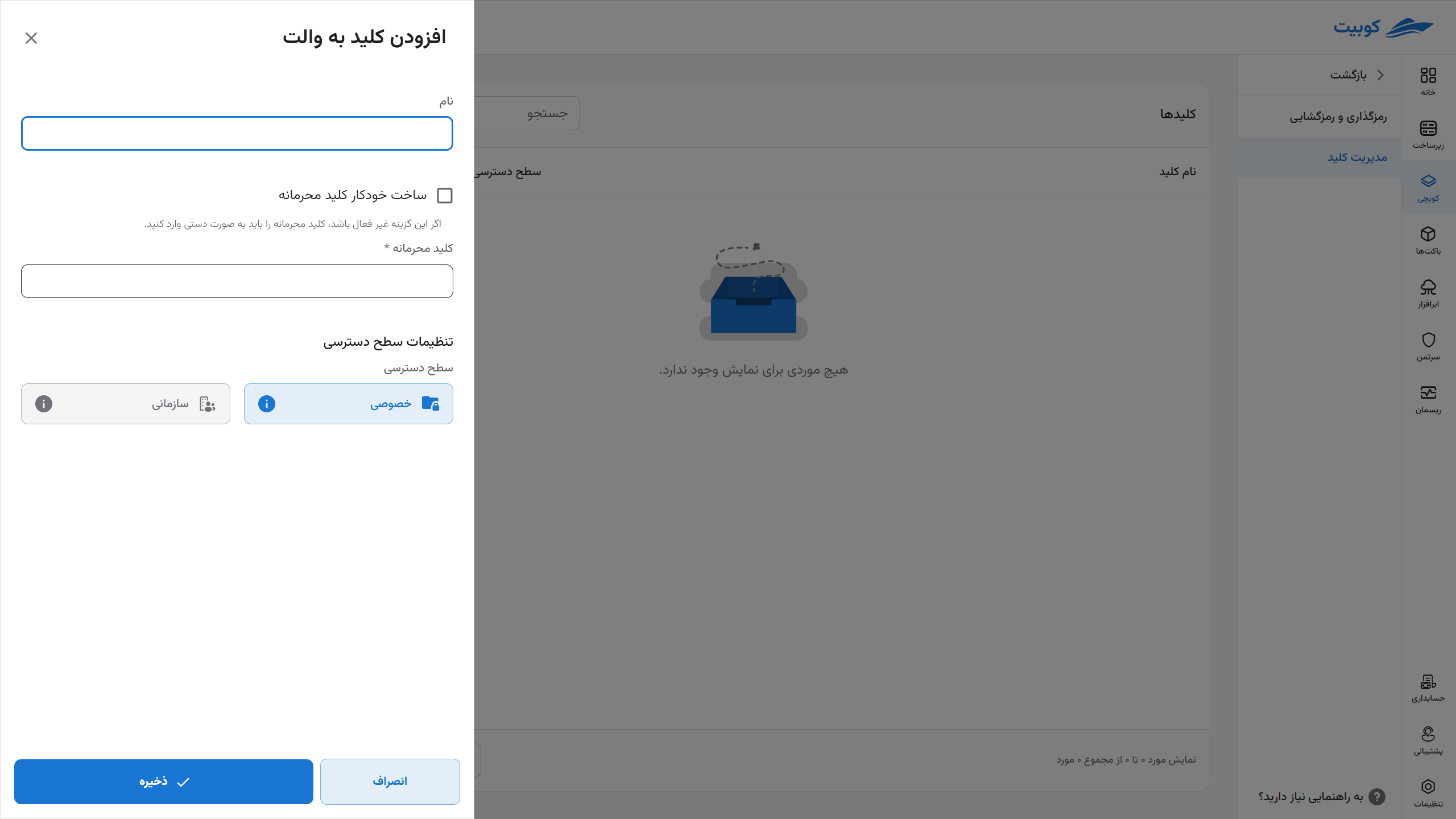
Do not put the secret key in messages, tickets, logs, or documentation screenshots. With automatic generation, Kubchi creates the value and stores it in the cluster.
Choose a key access level
- Private: the key is available only to the project that created it.
- Organizational: other projects in the same organization can use the shared key. The creating project remains the owner; a consuming project cannot edit or delete it.
Use Private when the data belongs to one project. Use Organizational only when several projects need the same key.
Encrypt text
Under Vault, open Encryption & Decryption. To encrypt a value:
- Select the Pack namespace.
- Select a Vault key available in that namespace.
- Enter the sensitive value under Plain text.
- Select Encrypt.
- Copy the complete output under Encrypted text.
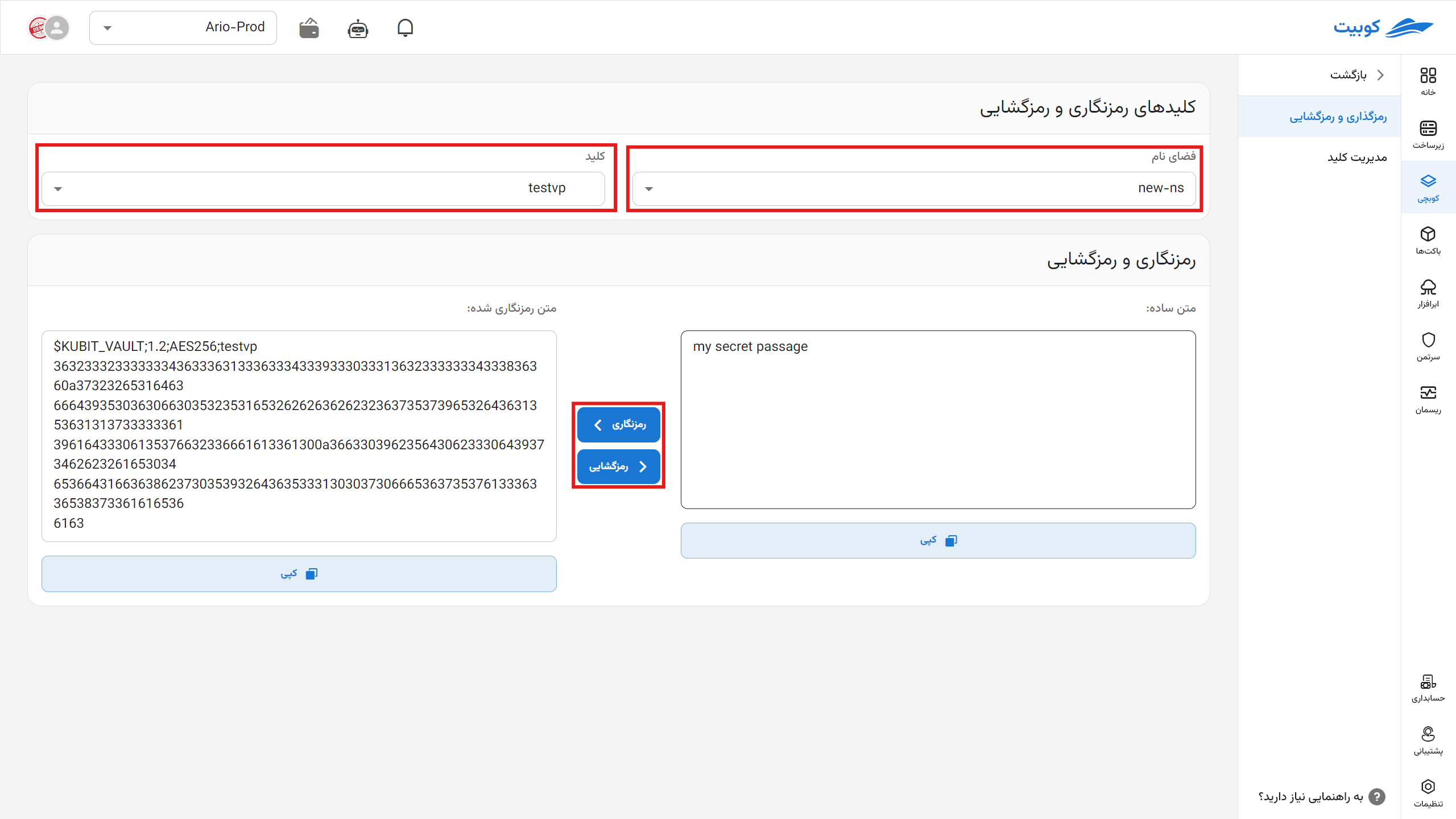
The output starts with a header containing the format version, algorithm, and key name. Place every line unchanged in spec.vars or spec.values. Removing the header, changing the content, or using a different key name prevents decryption.
After copying the output, clear the plain text field and clipboard. Kubchi does not remove the plain text from the page automatically.
Decrypt text
To inspect an encrypted value:
- Select a namespace where the required key is available.
- Paste the complete output under Encrypted text.
- Select Decrypt.
- Read or copy the original value under Plain text.
You do not need to select a key for decryption. Its name is stored in the encrypted text, but a key with that name must exist in the selected namespace.
The decrypted value appears on the page and, if you select Copy, in the clipboard. Clear both when you finish. Do not put the value in logs, tickets, or shell history.
Edit a key
On Key Management, open the key's action menu and select Edit. The panel only lets you change the access level. The name and secret value remain unchanged. You also cannot edit an organizational key owned by another project.
To rotate the secret value, create a key with a different name. Encrypt every sensitive value again with the new key and update the affected Pack configurations. Delete the old key only after you confirm that nothing still uses it.
Delete a key
Open the key's action menu, select Delete, and confirm. Deleting a key does not remove encrypted text already stored in Git or Pack configuration, but that text can no longer be decrypted with the deleted key.
Before deletion, find every Pack and configuration that uses the key name. Encrypt the data again with a replacement key and confirm that the updated configuration validates and applies successfully.
Common problems
A key is missing from the list
Check the selected namespace. The list only includes keys available there. If the key was just created, wait for synchronization and reload the page.
Decryption fails
Confirm that the encrypted text is complete and unchanged, the correct namespace is selected, and a key matching the name in the header exists. Output encrypted with a deleted or replaced key cannot be recovered.
Key creation fails
Duplicate names and names outside the lowercase-letter, number, and hyphen pattern are rejected. A manually entered secret key must contain ASCII characters only; enable automatic generation if needed.