

Recover your Kubit password
If you forget your password, you can usually create a new one without contacting support. The recovery path depends on whether you use a Kubit account, an LDAP account, or SAML sign-in.
For a Kubit account, you need access to its verified email or phone number. An LDAP account also requires access to the contact method registered for that organization user. Verification codes are valid only briefly.
Recover a Kubit account password
Open the Kubit sign-in page. Enter your email, phone number, or username and select Sign In to open the password step.
Select Forgot Password. If you only want to sign in without changing the password, choose Sign in with a verification code instead.
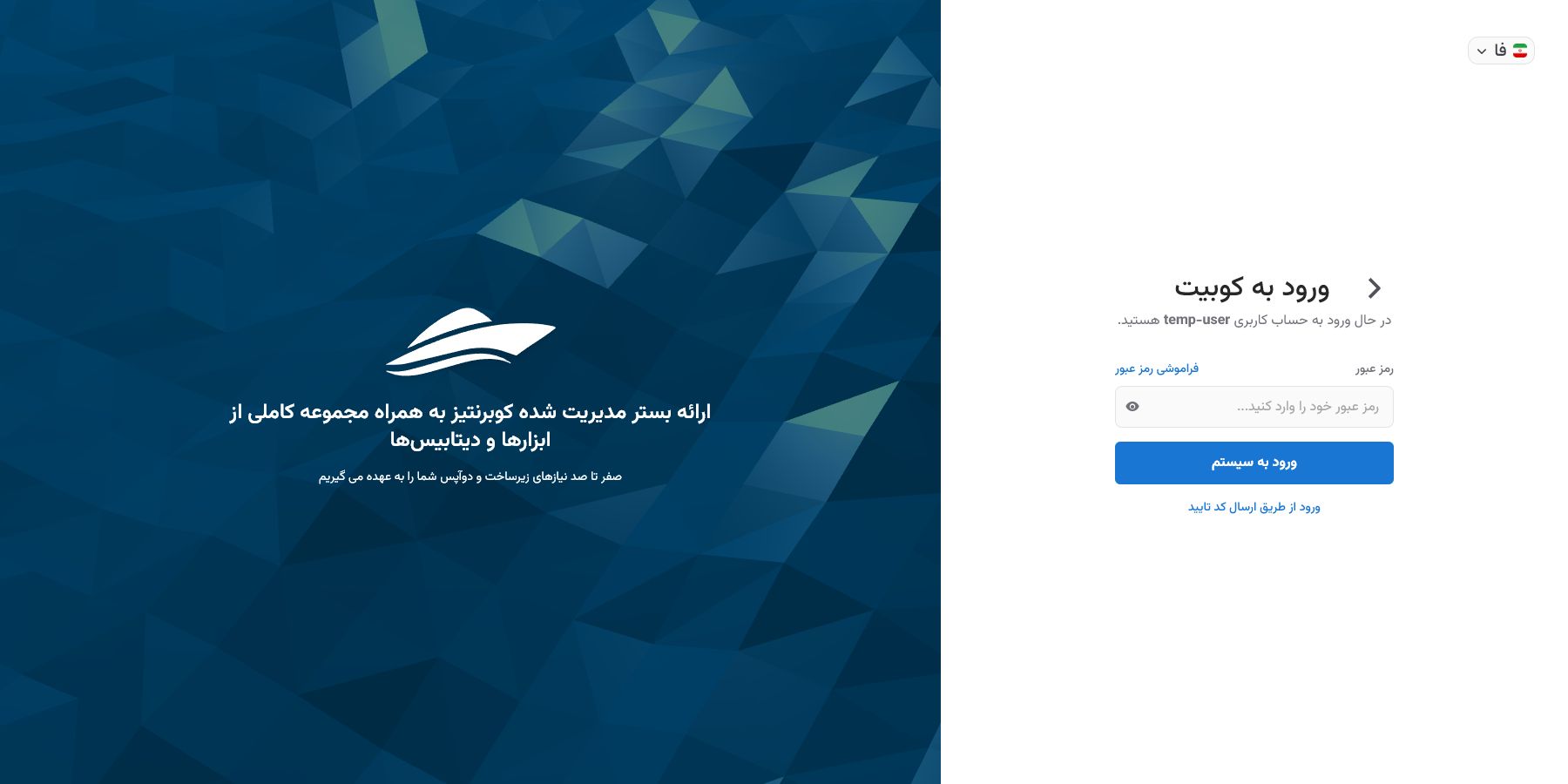
Enter the email or phone number already verified for the account and submit the form. Enter the six-digit code Kubit sends you. If it does not arrive, wait for the timer to finish before requesting another code.
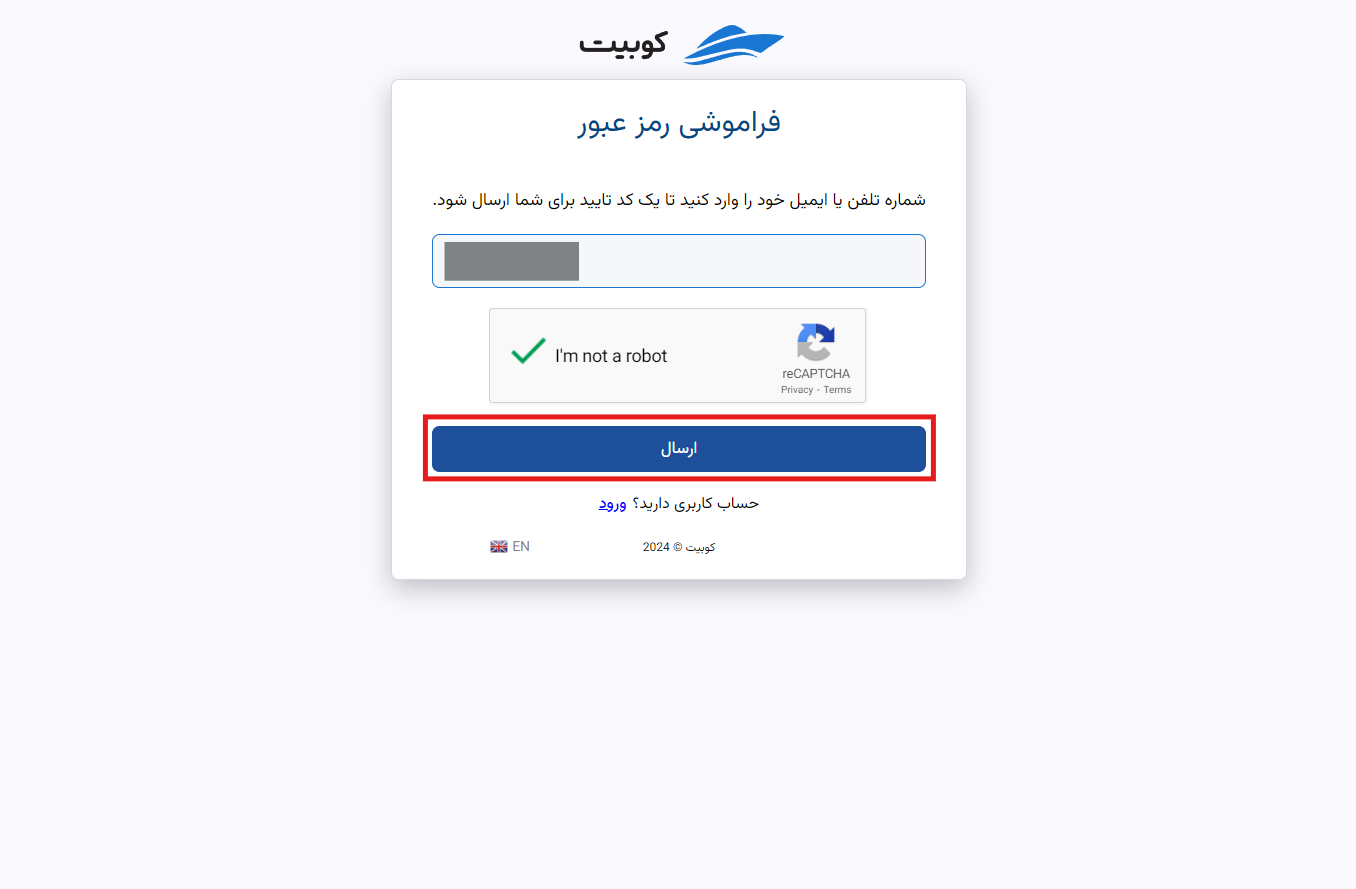
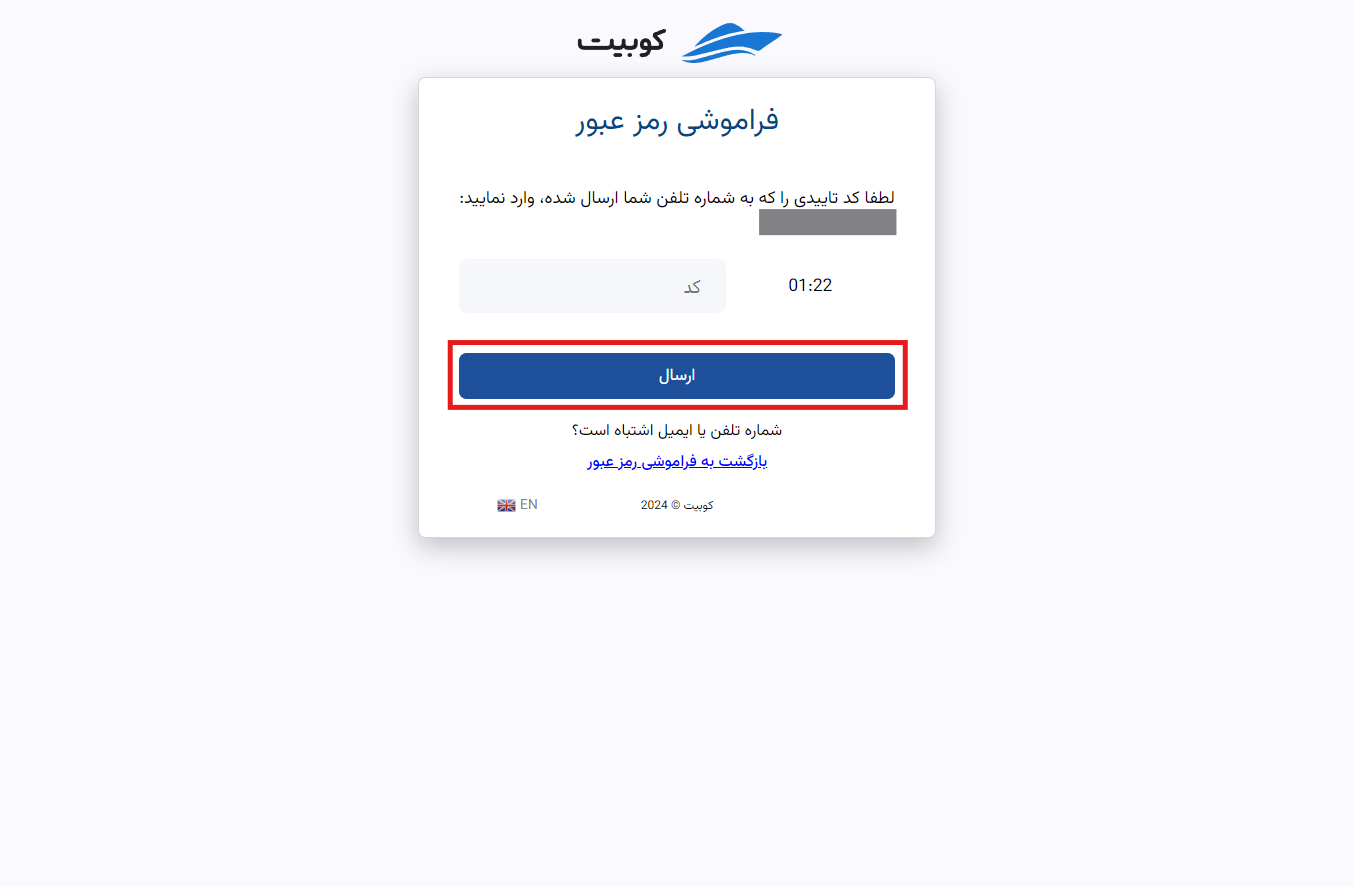
After verification, enter and confirm a new password that meets the displayed requirements. When the change succeeds, use the same account identifier and the new password to sign in.
Recover an LDAP password
Choose Organization Sign-In, enter the organization slug, and open the LDAP form. If the organization allows password changes through Kubit, Forgot Password appears below the username and password fields.
Enter your organization username, verify the code, and create a new password. The new password is stored in the organization's LDAP directory. If the recovery action is unavailable, ask the organization administrator or IT team to reset the password.
Recover a password for SAML sign-in
With SAML, your company's sign-in page handles credentials; Kubit does not receive the username or password. Use the recovery action on that page or contact your organization's support team. After changing the password, restart organization sign-in from Kubit.
If the verification code does not arrive
Check the email address or phone number and inspect the spam folder for email. For SMS, make sure service messages are not blocked. Wait for the timer and request only one new code; repeated requests can trigger a security challenge or temporary limit.
Automatic recovery is unavailable if you cannot access the registered contact method. Contact Kubit support for a Kubit account or your organization administrator for an organization account.
Common recovery errors
Always use the most recent verification code. Requesting a new code may invalidate the previous one. If the new password is rejected, recheck its length and composition, and ensure both password fields match exactly.