

Edit Pack configuration in Kubchi
Use the Pack configuration page to change application values, the chart version, and automatic upgrade settings. If the chart provides a form, make most changes from Form. Use Configuration and its YAML editor for values outside the form or direct manifest editing.
Edits do not affect the cluster until you confirm Apply pack. Before applying them, the panel can compare your edit with the current manifest, the rendered Helm output, and the GitOps file when the Pack is connected to Git.
Prerequisites
You need an installed Pack and permission to edit it. A locked Pack or a Pack being deleted cannot be updated.
To keep changes in Git, first connect a GitOps repository to the project and Pack. GitOps is not required for ordinary Pack editing.
Open Pack configuration
Open the project and select the Pack. In the pack sidebar, select Configuration, or on Overview, select Pack config from the pack information card.
Configuration opens the current Pack manifest in the YAML editor. The Pack name and namespace remain fixed after installation; you can change the chart version and other editable fields.
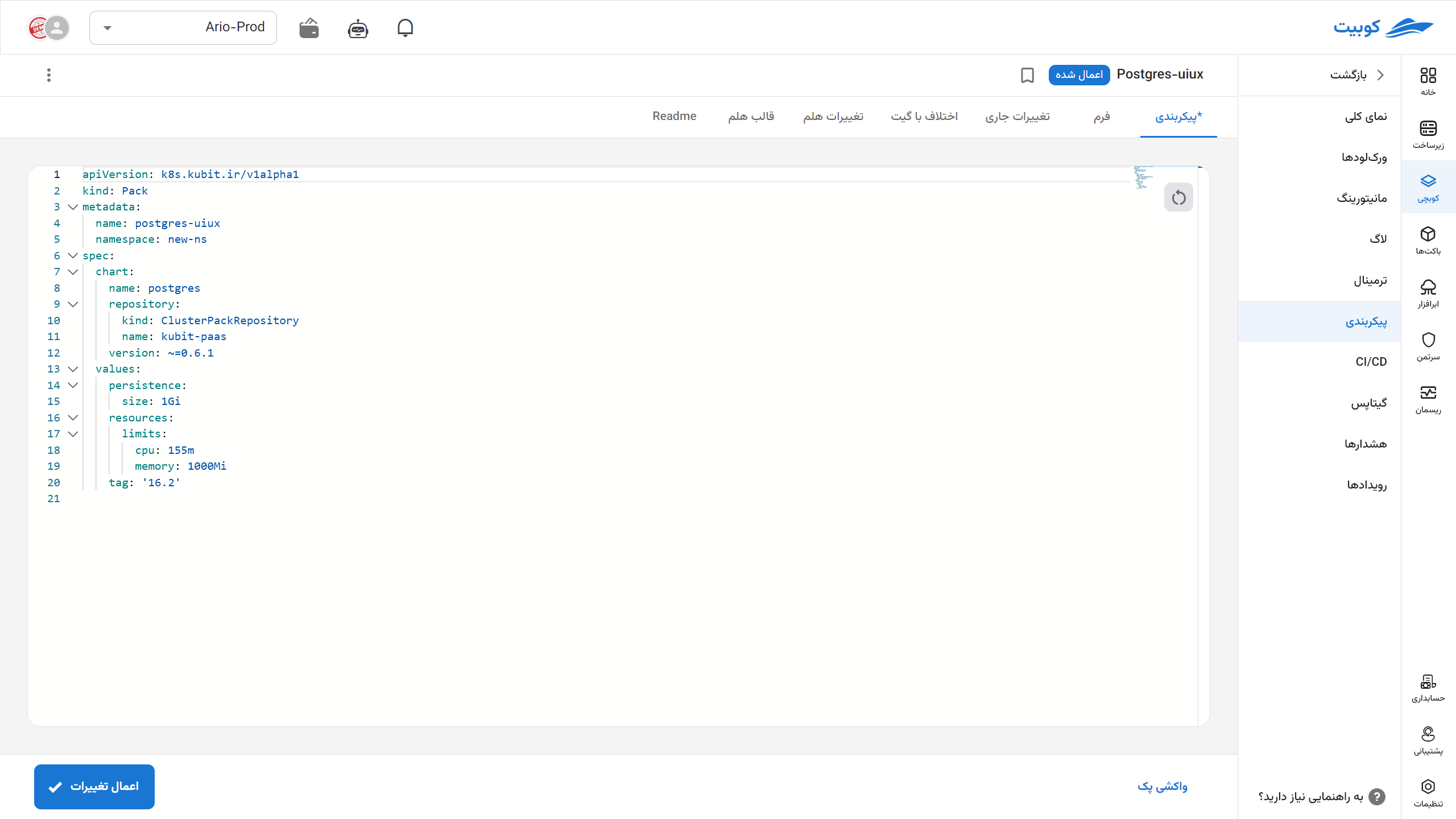
For the manifest fields, vars and values precedence, and chart version behavior, see the Pack manifest reference. Do not write sensitive data directly in YAML; encrypt it first with Kubchi Vault.
Use Vault in the editor
You do not need to leave Pack configuration to encrypt or inspect a value. Select the text in the YAML editor and right-click it. The editor menu provides two actions:
- Encrypt Vault: Select a Vault key available in the Pack namespace, then copy the encrypted output.
- Decrypt Vault: Decrypt the selected encrypted text with the key whose name is recorded in that text.
These actions do not replace text in the editor automatically. After encryption, copy the complete output and replace the plain value yourself. For decryption, select the entire encrypted text, including its header.
The key must be available in the Pack namespace, and your role must permit the requested action. Create keys, change their access, or delete them from the Vault page.
Edit through the form
Form appears only when the chart provides a configuration form. The chart author defines its fields, so the form may not expose every manifest value.
- Open Form.
- Change the required values.
- Review the chart version and upgrade settings.
- Review the previews, then select Apply pack.
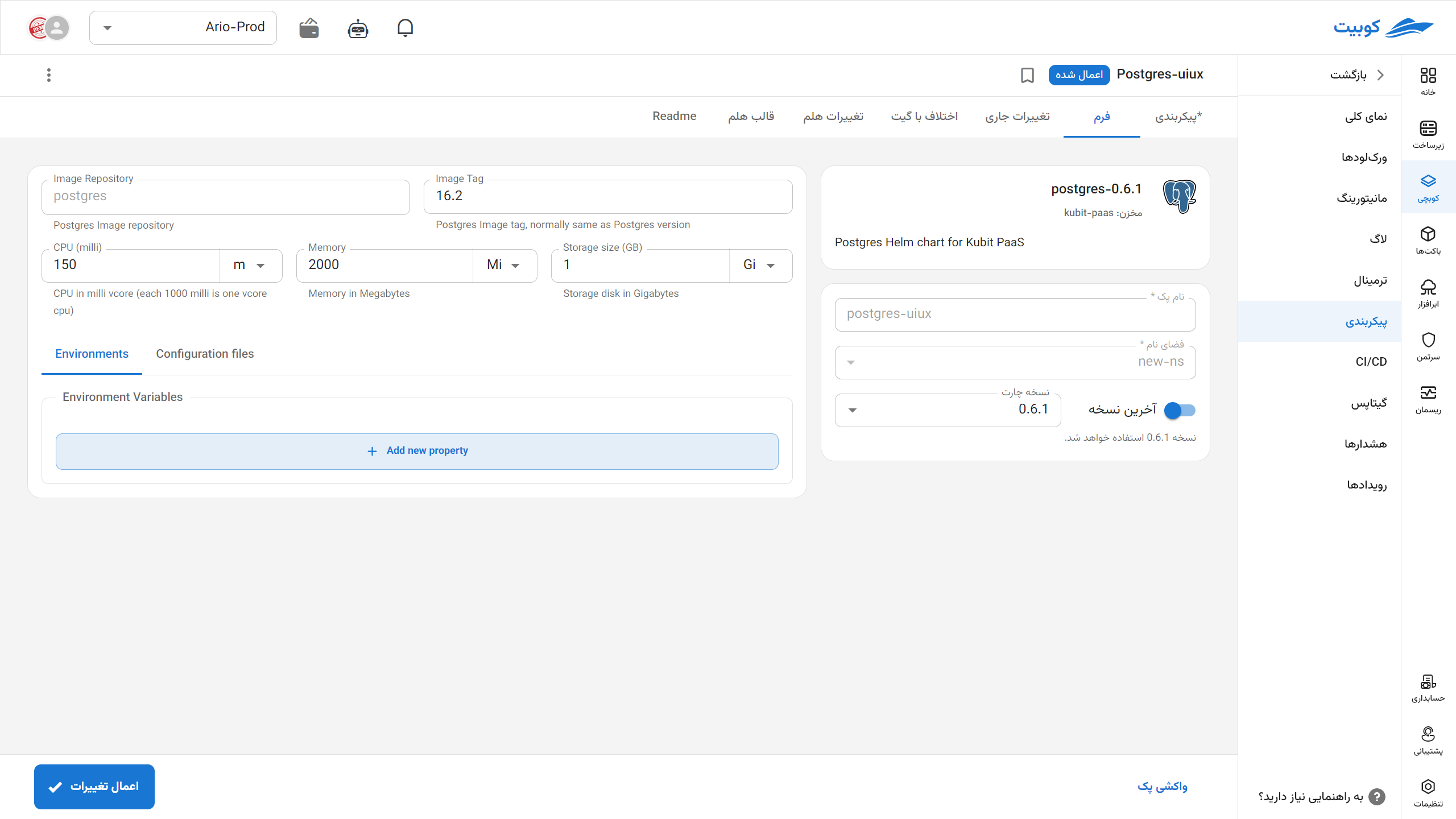
Last Revision changes the version constraint so that a compatible latest revision can be selected. Auto-upgrade enables automatic chart upgrades, and Auto-upgrade delay sets the waiting period before an upgrade. See chart version selection for the exact constraint and upgrade behavior.
If Form is not visible, the current chart version does not provide a graphical form. Use Configuration and change only fields documented by the chart or Pack reference.
Review current changes
Current Changes compares the Pack version in Kubernetes with your unapplied edit. Use it to find an unintended field removal, version change, or incorrect value.
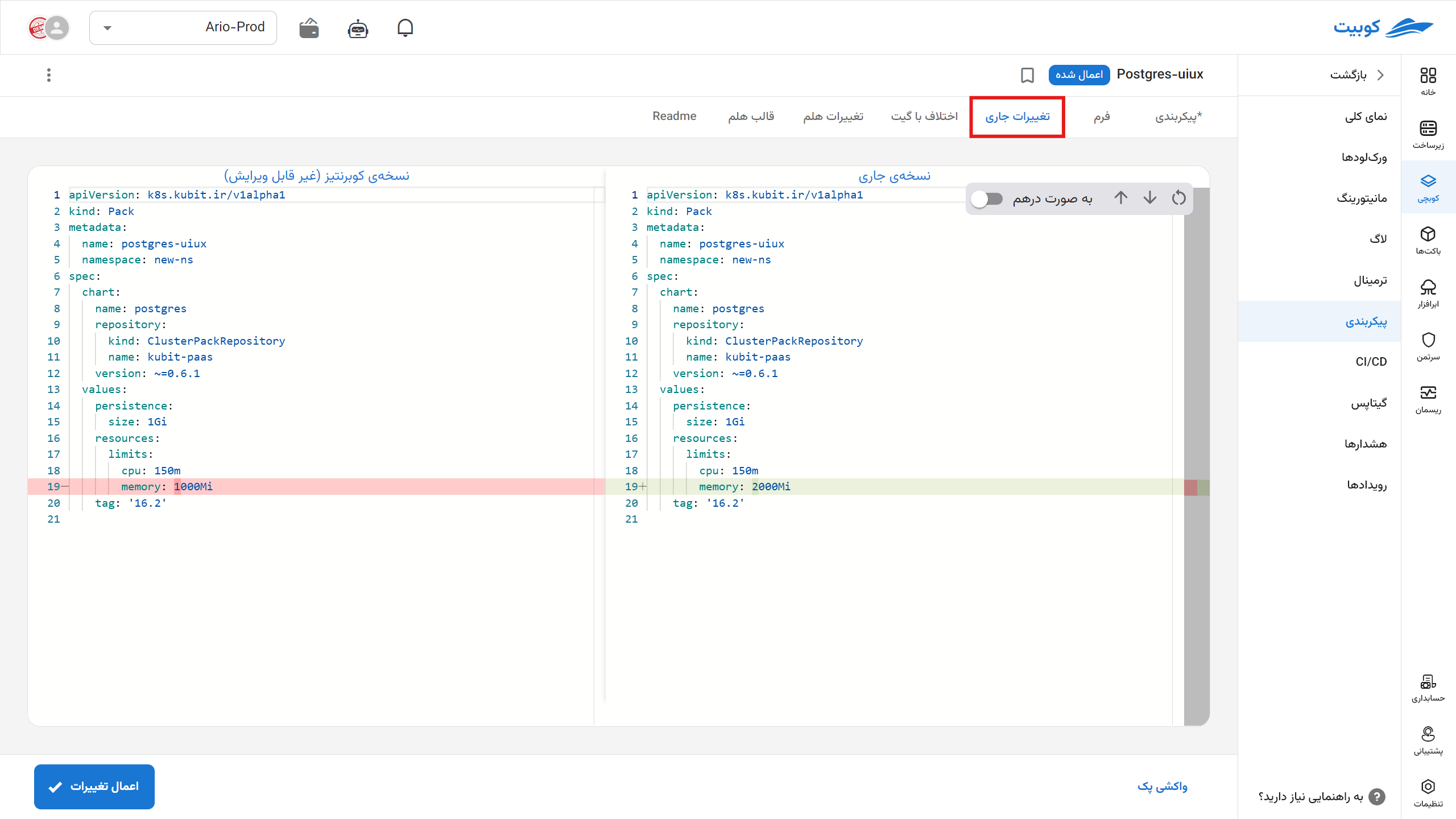
Inline displays the diff in one column. Previous and Next move between differences. Discard Changes removes all unapplied edits from the editor.
Review Helm output
Helm Diff shows which rendered resources the current configuration would add, remove, or change. Select a resource to compare its previous and new manifests.
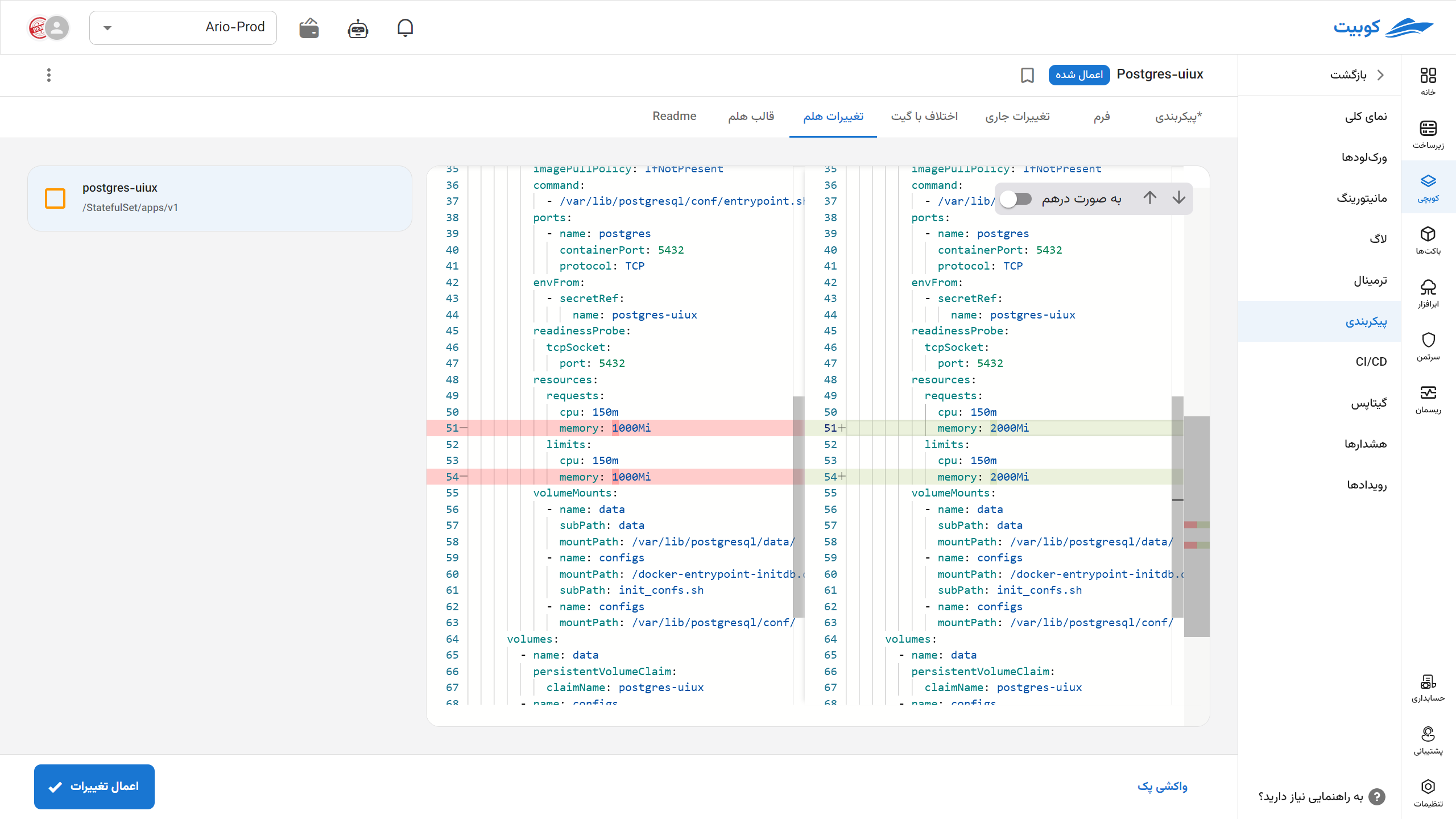
Helm Template shows all resources rendered from the current configuration. Before applying the change, inspect resource names, namespaces, rendered variables, and the final output. These previews do not load when the configuration is invalid or your role lacks the required permission.
Apply changes
After reviewing the previews, select Apply pack. Kubchi validates the manifest and applies it to the Pack resource. Pack Operator then reconciles the chart resources. The resources may take some time to become ready, so follow the Pack state and events until the operation completes.
An invalid configuration cannot be applied. Read warnings before confirming as well. If another user or tool changed the Pack after you opened the page, Kubchi rejects your edit to avoid overwriting the newer version. Run Fetch Pack, then reapply your changes to the latest version.
Keep changes in GitOps
For a Pack connected to GitOps, selecting Apply pack also opens a commit dialog. Commit changes to git is enabled by default, and you can edit the commit message before confirming.
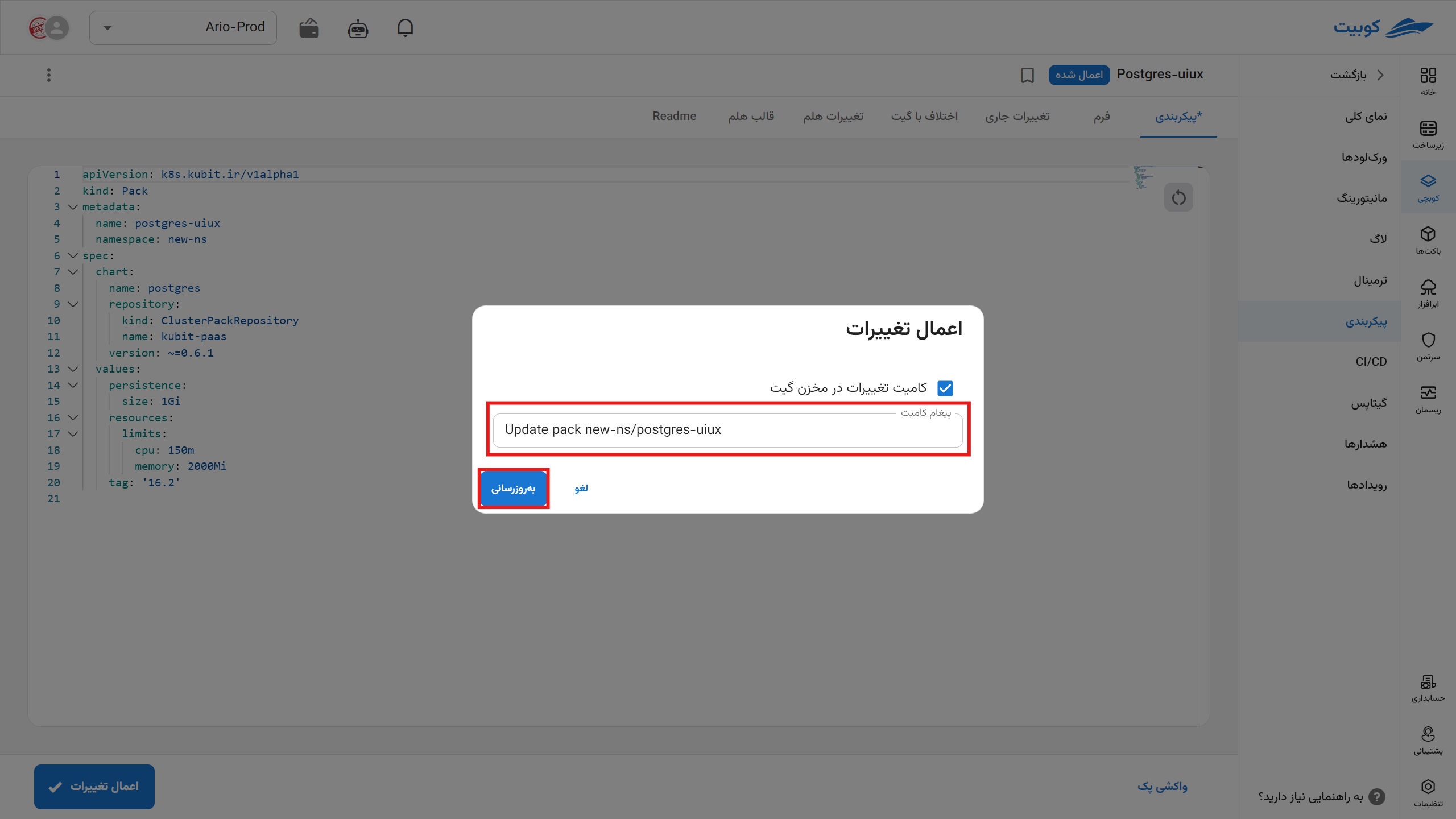
If you clear the commit option, the change is applied only to the cluster and the Git file keeps its previous version. The Pack then differs from Git, and a later synchronization may overwrite the panel edit. If Git is the source of truth, commit the change to the repository at the same time.
Resolve Pack and GitOps differences
Git Diff appears only for a Pack connected to GitOps. It compares the Git version with the current Pack version.
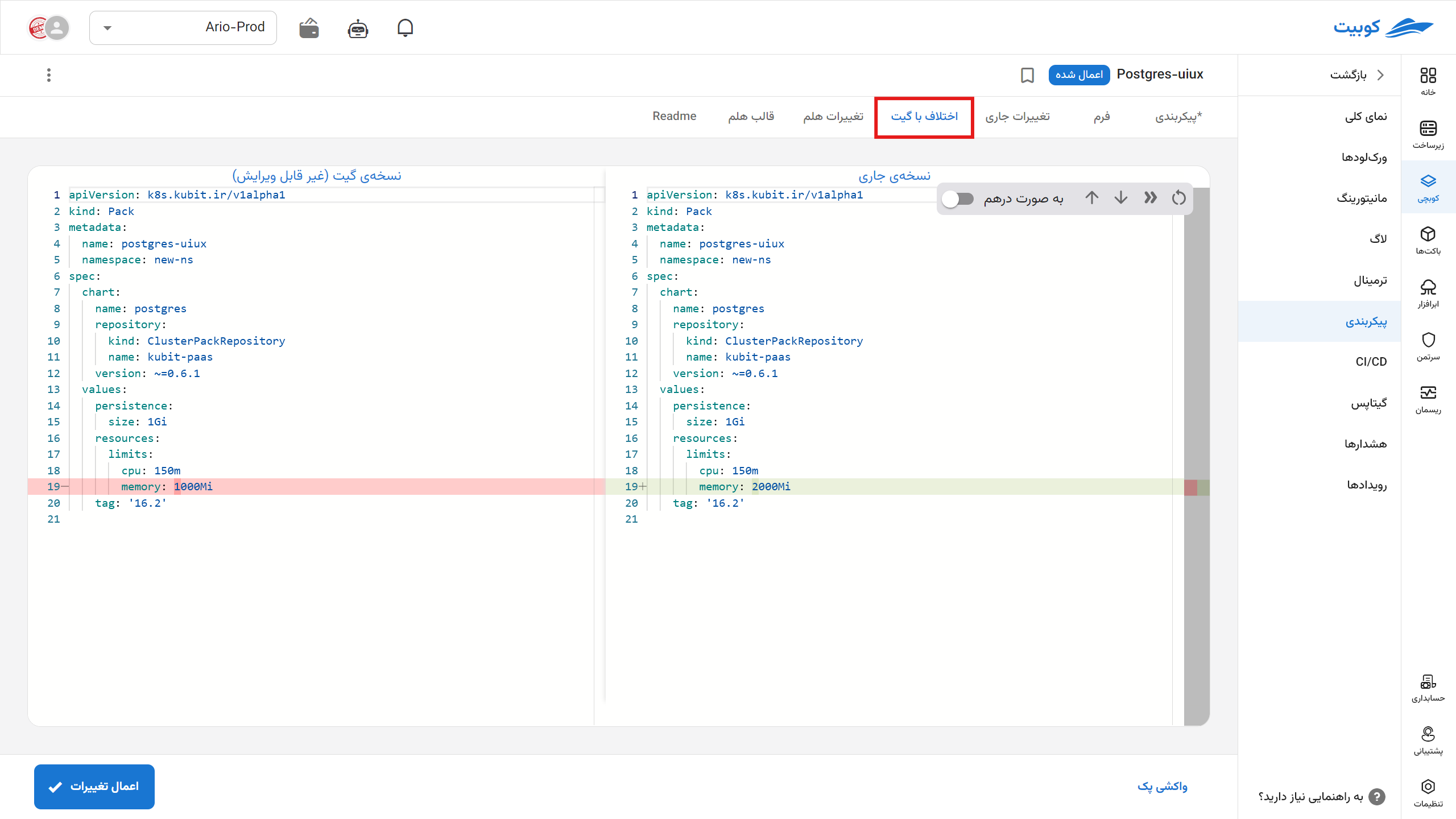
When the Pack differs from its GitOps file, choose one of these paths:
- If Git is authoritative, select Apply GitOps version in Git Diff, review the resulting changes, and then apply the Pack.
- If the current Pack is correct, select Commit Current Version to write it to the GitOps file.
- If each version contains part of the intended change, edit the configuration, review the combined result, and apply it to both the Pack and Git.
Decide which version is authoritative before resolving the difference. Switching between versions without that decision can overwrite valid settings.
View chart documentation
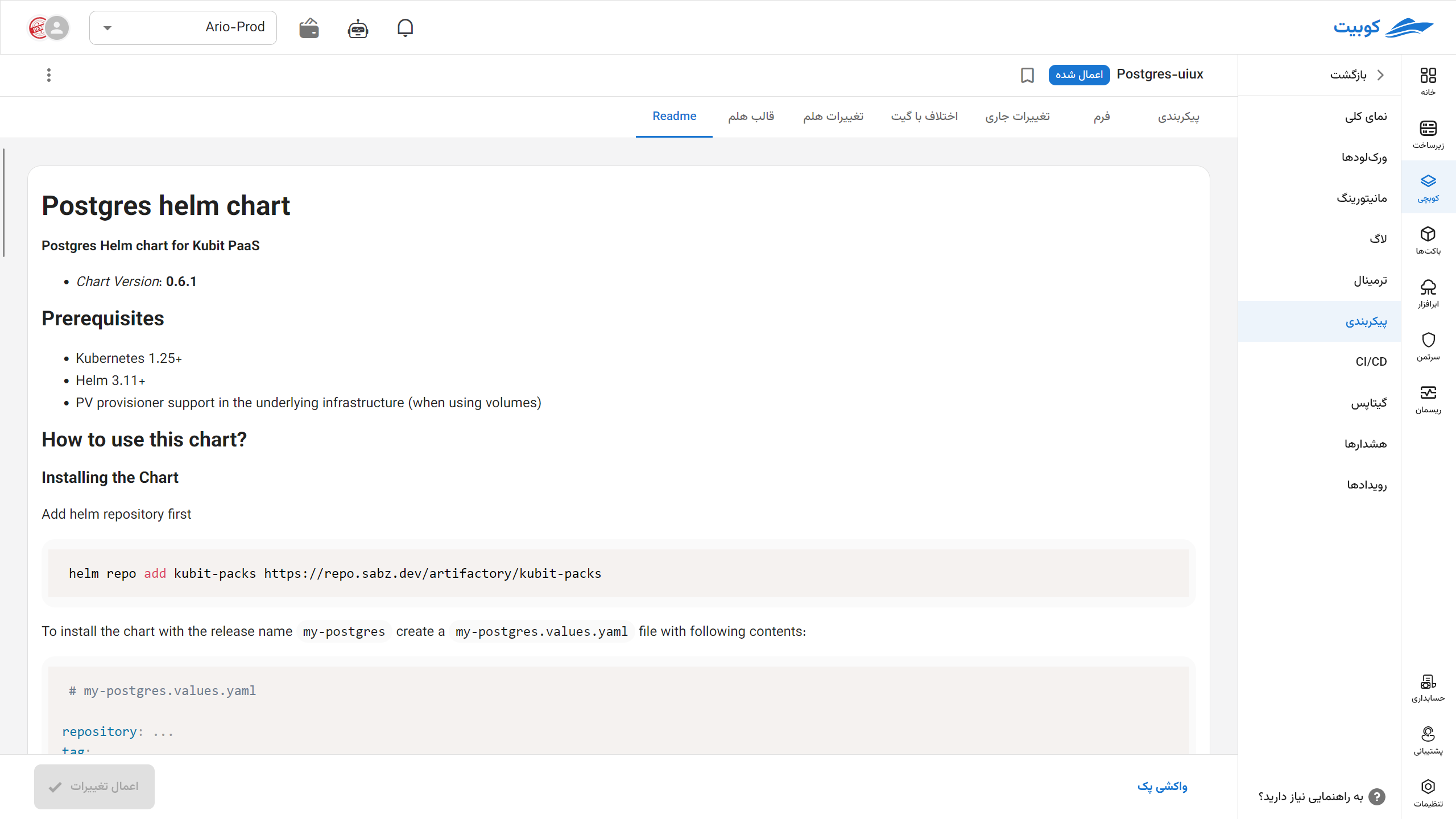
Readme shows the documentation published with the current chart version. Review chart-specific option names, prerequisites, and example values before editing.
Fetch changes made outside Kubchi
If the Pack manifest was changed with kubectl, GitOps, or another tool, open the Pack's three-dot menu and select Fetch Pack. Kubchi retrieves the latest Pack resource from the cluster.
If the editor has an unapplied change, Fetch pack conflict opens. Keep preserves the local edit and takes you to Current Changes for comparison. Replace discards the local edit and loads the fetched version into the editor.
Common problems
Form is not visible
The form appears only when the current chart version provides both a form schema and its UI schema. Use the YAML editor and chart Readme, or check another chart version.
Apply pack is disabled or fails
There may be no recorded change, your role may lack edit permission, the Pack may be locked or being deleted, the YAML may be invalid, or the Pack may have changed since the page opened. Read the error, run Fetch Pack if needed, and review the previews again.
A panel edit returns to the previous version
If the Pack is connected to GitOps and the panel edit was not committed, Git synchronization can apply the repository version again. Review Git Diff and decide which source is authoritative.
Applying the Pack does not finish deployment
A successfully applied manifest does not mean every workload is immediately ready. Check pack events, workload state, and pod logs.