

Manage Pack workloads and pods
Workloads shows the Pack's runtime resources and their pods. The same rows include ready replica counts, shortcuts to logs and terminal, and available resource operations.
Operations on this page change running resources directly. For a persistent replica count or application structure change, edit the Pack configuration. Otherwise, the next Pack reconciliation may restore the workload to the value defined by the chart.
Prerequisites
You need an installed Pack and permission to view its resources. Restart, Scale, and Delete require separate permissions. An operation may be disabled or return an access error when your role lacks its permission.
Open Workloads
Select Workloads from the pack sidebar. You can also open it from the Workloads status card on the Pack's Overview page.
The table shows each workload's name, kind, state, ready replicas, creation time, and actions. Depending on the chart resources, it may include Deployment, StatefulSet, DaemonSet, Job, and CronJob.
Enter part of a workload name in Search to filter the table. The table shows 25 rows per page by default.
Inspect workload and pod state
The Ready column shows ready / expected. For example, 2 / 3 means that two of three expected replicas are ready. A difference between these numbers does not always indicate an error; pods take time to become ready during installation, update, or restart.
The workload list updates as it receives changes, so state and ready replica counts may change without a manual reload during restart, Scale, or Delete operations. Reload the page if the information stops updating for a while.
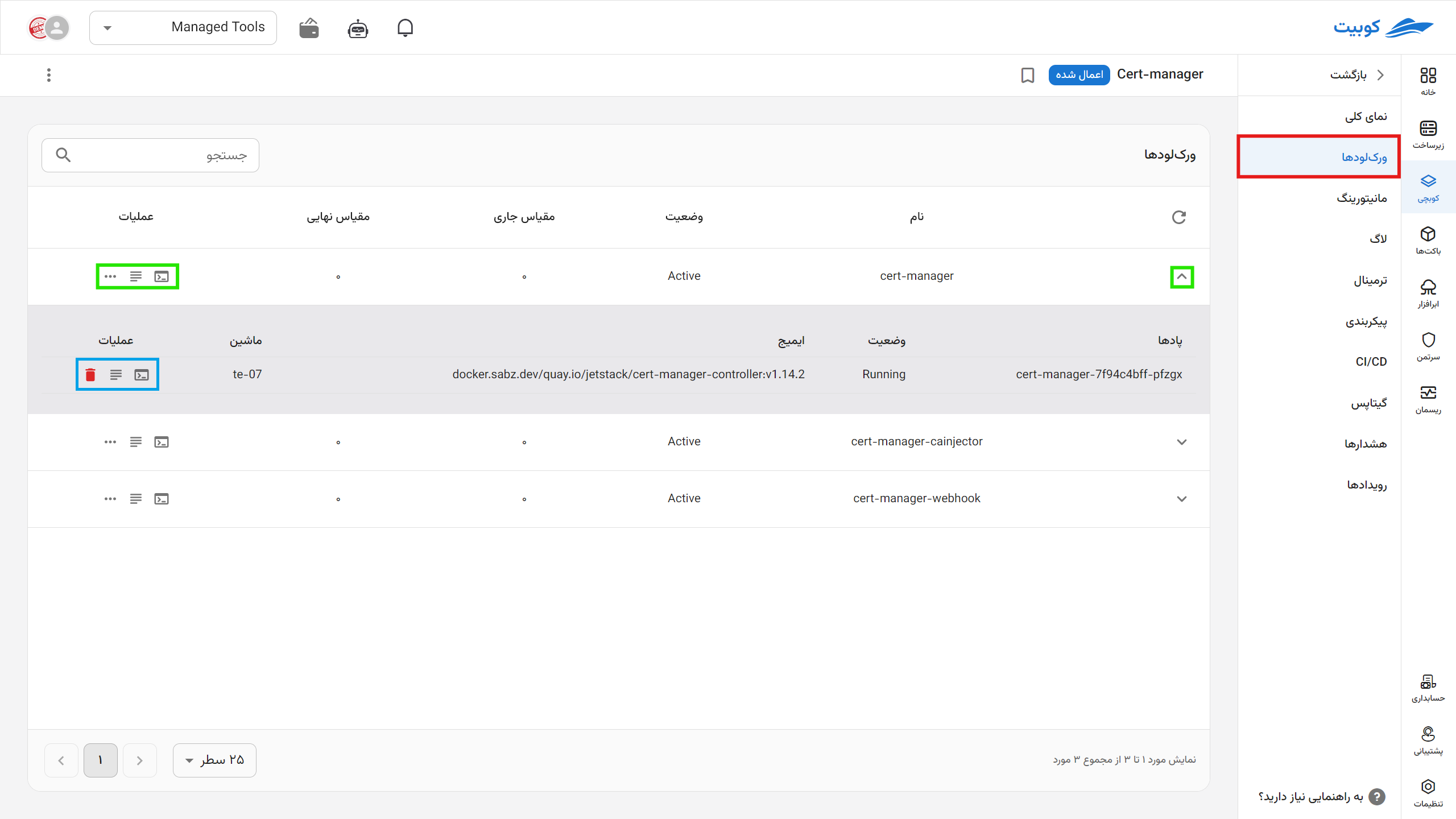
Expand a workload row to inspect its pods. The pod table shows:
- Pod name and state. Hover over the state to see the recorded reason when available.
- Ready containers compared with expected containers.
- Node name and the first container image.
- Creation time and shortcuts for Show terminal, Show log, and Delete.
Open logs and terminal
Select Show log on a workload row to open Logs with that workload selected. The pod-row shortcut limits the selection to that workload and pod. See viewing logs for filters and connection behavior.
Show terminal opens Terminal with the workload or pod from that row selected. Select the required container after the page opens. See opening a terminal for access and safety guidance.
Workload operations
The three-dot menu on a workload row provides three operations. Check the workload name and kind before continuing; every operation can affect application availability.
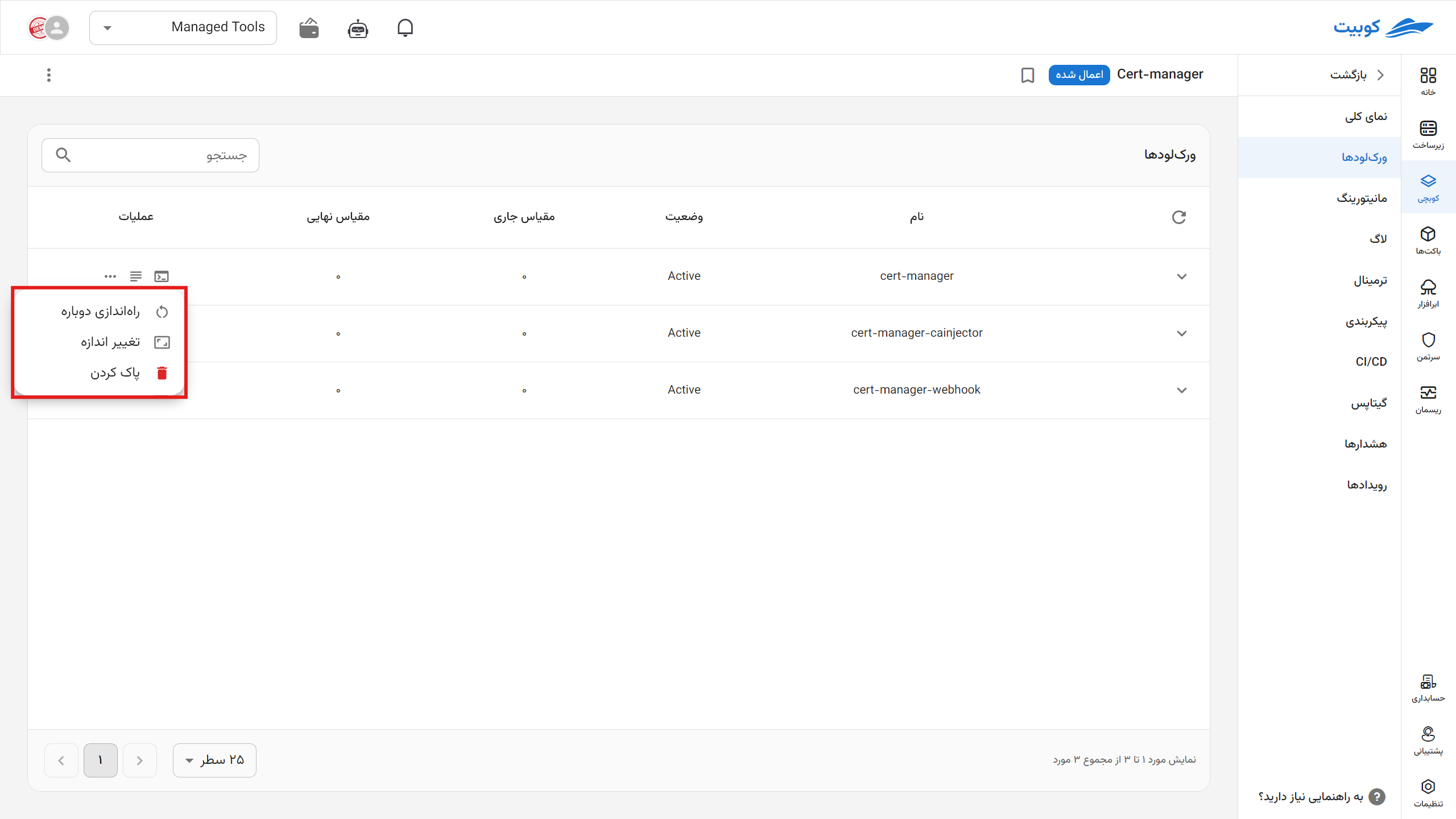
Restart
Restart starts replacement of the workload's pods. Use it to reload configuration or recover an unhealthy runtime. A success message confirms only that the operation started. Follow Ready, Events, and logs until the workload becomes stable.
If the workload has one replica or the application cannot tolerate pod replacement, the restart may cause an interruption.
Scale
Scale changes the expected replica count for a scalable workload. The new value must be zero or greater. Setting it to zero stops every replica of that workload, and any dependent service remains unavailable until you increase the count again.
The initial value in Scale workload comes from the ready replica count and may differ from the expected count. For example, if Ready shows 2 / 3, the dialog may open with 2. Enter the intended value explicitly before confirming so you do not reduce the replica count accidentally.
This operation is available for Deployment and StatefulSet. For a persistent change, update the corresponding value in the Pack form or configuration. Otherwise, the next Pack reconciliation may restore the chart value.
Delete a workload
Delete removes the workload from its namespace and may make all its pods unavailable. If the resource is still defined by the Pack chart, Pack Operator can recreate it during a later reconciliation.
Deleting a workload directly is not the usual way to remove an application or one of its components. Change the Pack configuration to alter the application structure. To remove the whole application, delete the Pack through Pack management.
Delete a pod
The trash icon on a pod row deletes that pod after confirmation. If a controller manages the pod, Kubernetes usually creates a replacement. Use this operation to recover an unhealthy pod, not to reduce replica count; use Scale for that.
Deleting a pod can terminate active connections or unfinished work in that pod. Before confirming, make sure the application has other healthy replicas or that a possible interruption is acceptable.
Common problems
Ready does not reach the expected count
Expand the workload and check pod states and ready container counts. Then inspect Pack events and logs from the affected pod. Image pull errors, insufficient resources, a container that never becomes ready, and invalid configuration are common causes.
An operation is disabled or fails
Check your role permission for that operation. The resource kind must also support the requested action. Scale is available only for scalable workload kinds, and Restart may be rejected for some Job or CronJob resources. If the operation starts but the workload does not stabilize, inspect events and logs instead of repeating the operation in quick succession.
A deleted workload or pod is recreated
A Kubernetes controller replaces a deleted pod, and Pack Operator can recreate a workload that remains defined by the chart. To keep the resource from returning, change its definition or replica count in the Pack configuration.